Simple File Transfer – NOT

Recently I needed to transfer a private binary file from one household to my server. We wanted this transfer to remain private because the file contains sensitive content.

In the past, I set up a WebDAV server using Apache2.4:

First I had to enable the DAV modules using the following command line on my Ubuntu server:

sudo a2enmod dav
sudo a2enmod dav_fs

I already had a directory set up on my file system called: /mnt/Sites/public_share. I made the following changes to my Apache2 configuration files.

<VirtualHost *:80>
    ServerName share.lufamily.ca
    RewriteEngine On
    RewriteCond %{HTTPS} off
    RewriteRule (.*) https://share.lufamily.ca
</VirtualHost>

<VirtualHost *:443>
    ServerName share.lufamily.ca
    ServerAdmin xxxxxxxx@gmail.com
    DocumentRoot /mnt/Sites/public_share

    <Directory /mnt/Sites/public_share>
        AllowOverride All
    </Directory>

    <Location />
        AuthType None
        DAV On
        Options +Indexes
        RewriteEngine off
    </Location>

    Include /home/xxxxx....xxxxxxx/ssl.lufamily.ca
</VirtualHost>

I did not have any authentication, because I restricted access to this directory with an override .htaccess file which contains the following:

<IfModule mod_headers.c>
    Header set X-XSS-Protection "1; mode=block"
    Header always append X-Frame-Options SAMEORIGIN
    Header set X-Content-Type-Options nosniff
    Header set X-Robots-Tag "noindex, nofollow"
</IfModule>

<Files ".htaccess">
  Order Allow,Deny
  Deny from all
</Files>

<RequireAny>
    Require ip 192.168.0.0/16
    Require ip 172.16.0.0/12
    Require ip 10.0.0.0/8

    # Sending computer external IP
    Require ip AAA.BBB.CCC.DDD
</RequireAny>

With the above setup, the other party just needs to open up a Finder on macOS or a Files Explorer on Windows with the above URL of https://share.lufamily.ca, and copy, delete, and open files like they normally would. The access will be private because it is restricted by their external IP address. With macOS, copying many gigabytes via WebDAV posed no issues.

Unfortunately, Windows is another matter. This worked for small files. For large files in the gigabytes range, Windows seemed to be stuck on 99% complete. This is because Windows locally caches the large transfer and reports it is 99% completed in a very short time, as the physical transfer catches up. But the actual time needed for the copying across the Internet is so long that Windows became confused thinking that we are copying a file that already exists yielding an unwanted error.

I had to come up with an alternative. We briefly dabbled with the idea of using FTP, but after a few minutes, this was simply a non-starter. The FTP passive mode requires ports to be opened on my firewall which is unrealistic for a long-term solution.

SFTP is a very secure protocol that uses OpenSSH. I also like this technique because the usage is more secure and will be governed by a pair of SSH Keys. The private key on the remote user side and the public key will be used to configure SSH on my server. I set up a ssh user called sftpuser. To prepare for this user to only have sftp access I made the following changes to the sshd configuration file /etc/ssh/sshd_config.

# Added the internal-sftp
Subsystem sftp /usr/lib/openssh/sftp-server internal-sftp

# Configure the local user scpuser to only do sftp
Match User sftpuser
    ChrootDirectory /home/sftpuser
    PasswordAuthentication no
    ForceCommand internal-sftp
    AllowTcpForwarding no
    X11Forwarding no
    AllowAgentForwarding no

I then created the sftpuser using the following command:

sudo adduser sftpuser                                                                                                                  sudo chown root:root /home/sftpuser                                                                                                    
sudo mkdir /home/sftpuser/uploads                                                                                                      sudo chown sftpuser:sftpuser /home/sftpuser/uploads                                                                                    
sudo chmod -R 0755 /home/sftpuser/uploads

This user will not be able to login into a shell and can only use sftp. I also disable the password authentication just in case. For the remote party to upload the file, they will need to provide a public ssh key which needs to be stored in the .ssh/authorized_keys file. The contents of which look something like this:

ssh-rsa AAAAB3NzaC1yc2EAAAADAQABAAACAQCliK6NZx6JJBcK0+1GtEe8H6QpN1BHDRgq/vtiEAfwzcjN1dBtQhfplyDxEXXXXXXXXXXXXXXXXXXXXXXXXXXXXXXXXXXXXXXXXXXXXXXXXXF+OLV9qWMsE/g+1H4oyLRqzQnD8w7S4RBUJzrrZIpLEzYRf43pWSW9Y3220swlIEYxIOIcJIc8prgzDbECt3CR/BsRDYNZA5uxdPYLwh1YtTX8GEqoctJifLrC4OomKkczDek9k/MHdFbWZ0LdK3AB287nr/Q4Lb8GgfU3bEhF+AMSWM8r/OHC1QBPYYYYYYYYYYYYYYYYYYYYYYYYYYYYYYYYYbH8npyFsC3rADnjfFsB4VkkiNDDIZbZkV2vBf3sJ49Q1Y3uHugWxITWImKjfl+YUdGMalbSfP8UueKSx3sDGQQDXZjzrwnX3KPie0Qiz2rQtrppB7dA5CvOb86Q== guest

The above is just a single line in the file.

With the above setup, a Linux user can simply do the following to transfer a file to my server in a very secure way.

sftp -P55522 sftpuser@lufamily.ca <<< 'put /usr/bin/bash uploads/sample.bin'

The above command will upload the bash binary to my server.

An attacker trying to login using ssh will get the following:

❯ ssh -p 55522 sftpuser@lufamily.ca
This service allows sftp connections only.
Connection to lufamily.ca closed.

On Linux or macOS, the remote user can use ssh-keygen to create the public key which by default resides in ~/.ssh/id_dsa.pub. All I need to do is copy the contents of the public key and add it to my .ssh/authorized_keys.

For Windows users, they can generate the key using Windows PowerShell. Below is an example:

> ssh-keygen -t rsa -b 4096
Generating public/private rsa key pair.
Enter file in which to save the key (C:\Users\kang/.ssh/id_rsa):
Enter passphrase (empty for no passphrase):
Enter same passphrase again:
Your identification has been saved in C:\Users\kang/.ssh/id_rsa
Your public key has been saved in C:\Users\kang/.ssh/id_rsa.pub
The key fingerprint is:
SHA256:hV6vcChUwpxXXXXXXXXXXXXXXXXXXXXXXXXXX0aTkJZ2M kang@win10
The key's randomart image is:
+---[RSA 4096]----+
|  . Eo.==..      |
|   * *+++=+      |
|  . @ oo.=+* .   |
| . = o..B+=.* .  |
|  .   .oSO.o..   |
|       ..oo.     |
|          .      |
|                 |
|                 |
+----[SHA256]-----+

> cat .\.ssh\id_rsa.pub
ssh-rsa AAAAB3NzaC1yc2EZZZZZZZZZZZZZZZZZZZZZZZZZZZZZZZZZZZZZZZZZZZZZZZZZZZZZZZZQQWgIVShifqFxq78MWQEJrM2xrVQXlPHUncNosEm6P/l0LdWu1nRbIccKMNsmpPK7JOv9XF+CsrtlltnhwDqiuflCGftzhrlmBz8BOJRiwD0Fl1IfQ+Qg7Z1nvIo6+kpkBw7SGPN7fbJxDPPHmc9iPB4RnlG46v6ymd4KM0h1cGlReCly2PTxTG1dcPuDbrBIIdEHoN/40hojrooQf+cQNprvYZY59EjvC0NoZsfiKGDHHq3S7HRPGns9Oo4y8vFl1DrJZFIvBVdjjL28JsmIdeKbMhCynkzIkPLPvsiplxkEF0RQ9fFcIsucuD8leJmMDNPas+8EdueQ== kang@win10

To copy a binary you can do the following:

> sftp -P55522 sftpuser@lufamily.ca
Connected to lufamily.ca.
sftp> put "C:\Windows\System32\tar.exe" uploads/junk.exe
Uploading C:/Windows/System32/tar.exe to /uploads/junk.exe
tar.exe                                                                               100%   54KB  13.1MB/s   00:00
sftp> ls
uploads
sftp> cd uploads
sftp> ls
junk.exe    sample.bin
sftp>

The above is very similar to Linux and the Mac. Windows and its PowerShell have come a long way in terms of adopting Posix-like capabilities.

For those who want to use WinSCP, a much nicer GUI on Windows, you will need to convert the .ssh/id_rsa private key into ppk format. Use the command below to achieve this.

"c:\Program Files (x86)\WinSCP\WinSCP.com" /keygen id_rsa /output=id_rsa.ppk

You can then set up WinSCP authentication and load the ppk file.

So what I thought would be a simple matter turned out to be quite a deep rabbit hole. Hopefully with this in place, future transfers can be done quite quickly and securely.

Cellphone Roaming on our China Trip

We just returned from our month-long China trip, and I wanted to comment on our roaming strategy.

While in Canada, our cell service provider is Koodo, which offers Easy Roam packages. Effectively when you land in a foreign country, the first time you answer or make a voice call, or send a text message, it automatically engages roaming at $14/day when you are in the US, and $16/day for other countries. I believe other cell providers like Rogers, Telus, and Bell offer a similar service at comparable costs. With this approach for 30 days, it will cost us $480 for each number and almost $1,000/month for both numbers.

Both my wife and I recently acquired iPhone 16 Pros, which are eSIM capable and unlocked phones. We can, therefore, consider eSIM services for travel. One of the most popular services is Airalo. Airalo provides various packages for different countries or regions. Each package will give you a different data capacity within a certain date range. For example, at the time of this writing, they have a $40.50 per 30 days that will give you 10GB of data with the option of topping up should you need more in China. You can already see that this is ten times less than Easy Roam!

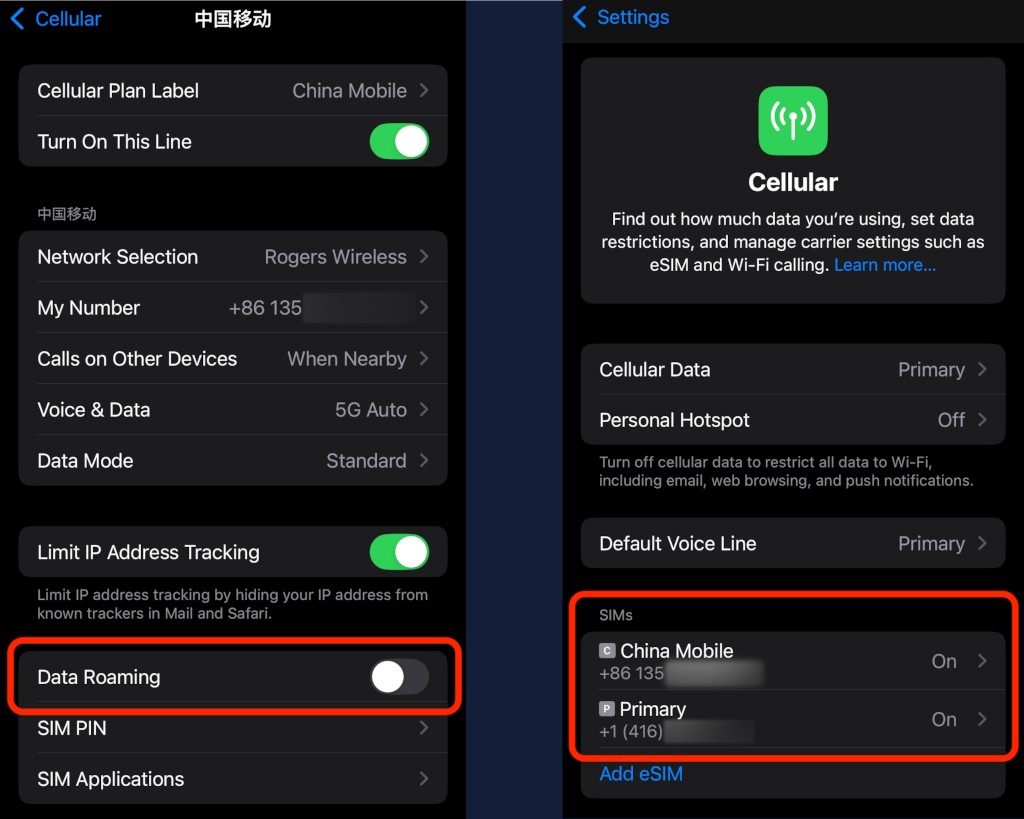
I have used Airalo in Mauritius, France, Dubai, Hong Kong, Japan, and China. The trick is to download the Airalo App. Use the App to purchase the package you want that matches your travel itinerary, and be sure to install the eSim on your phone while you have a stable Wi-Fi connection before you travel. Once the eSim is installed it will try to activate. This will usually fail and is the expected behavior because you typically install your eSim in your home country and not in the country of service. I usually turn off the eSim before arrival, and when you arrive, simply turn on the eSim and ensure Data Roaming is turned on. The clock starts ticking as soon as your eSim is activated. Also, ensure that your Cellular Data is set to your Airalo eSim, which is usually named “Secondary” or “Travel”. You can customize the label under “Cellular Plan Label”.

The relevant iOS 18.1.1 setting screens

The downside to using something like Airalo is that it only provides data. For voice, you typically have to use something like FaceTime, WhatsApp, or WeChat substitutes. This is a bit inconvenient but definitely workable.

Some like to turn off their “Primary” line, which is my original Koodo line. The reason for this recommendation is that you do not accidentally use this line while roaming. I personally like to keep my primary line on so that I continue to receive two-factor authentication text messages. However, if I make a mistake in answering a call from my primary line, then I automatically incur the $16/day Easy Roam charge, so beware! If you are not sure, then turn off your “Primary” line to avoid this risk.

Although Airalo worked in China, we wanted a more permanent solution for China since it is a country that we frequently visit. We decided to opt for a local cell plan from one of the three major service providers, which are: China Mobile, China Telecom, and China Unicom. We decided to go with China Mobile. For this to work, your phone must be unlocked and also have a physical SIM tray. Chinese service providers do not support eSim for their normal plans. This also provided us with a voice plan as well, which is another advantage. We ended up paying for a 19 RMB (< $4 CAD) per month plan that will give us 5GB of data and 100 minutes per month. Unfortunately for us to be eligible, we had to spend 1,500 RMB (~$300 CAD) upfront for a giveaway Vivo Y37 phone. Carol is using that phone as an audiobook player, so it is not all lost.

Going with a local provider like China Mobile also means we can receive two-factor text messages while in Canada. This is important as we use certain financial service apps like banking apps that are tied to our Chinese numbers. We also found that using China Mobile while touring in China means problem-free when using Chinese mobile services, such as booking train trips, hotels, renting bikes, and ordering takeout. Previously when we were using the Nihao service. We found that certain services like renting a bike were either not available or extremely tedious to set up, such as requiring registration of your passport.

Having a China Mobile subscription also means that we can have a local bank account tied to our WeChat account. This also makes buying things more convenient and allows us to avoid a 3% surcharge with Alipay when paying with your linked credit card. Our preference is to use WeChat Pay which is either tied with our Hong Kong bank account or with one of our Chinese bank accounts. Unfortunately, opening a Chinese bank account is an exercise in patience in itself. I will not get into that here.

One final bonus with a China Mobile subscription is that I now also have the option of using China Mobile roaming plans, which I found are either equal or lower than the Airalo options. I tried this in both Hong Kong and Dubai. The roaming plan worked but I am still behind the Great Chinese Firewall (GCF) while roaming. However, I do have voice roaming with this option.

To get access to things outside of the GCF, I find LetsVPN is the best VPN service. It worked in all the Chinese provinces and cities that I visited. I needed this VPN service to access my work online assets as well as our Koodo voicemail. To gain access to our Koodo voicemail, I used a Softphone App on my iPhone to use my company’s VOIP.ms account to call the Koodo voicemail access number in North America, which is ‭+1 (647) 580-4001‬. Therefore when we get voicemail with our Koodo account, we can use this approach to check our voicemail without incurring roaming charges. The Softphone is also a great option to make voice calls to North America from China without incurring any long-distance charges. I could use my China Mobile or Koodo line to make the call then I will be charged either roaming or long distance or both.

I probably make it sound more complicated than it really is. Overall it should be very manageable and there are plenty of roaming options out there other than the $16/day Easy Roam option.

Replacing VDEV in a ZFS Pool

Several months ago I had an old 3TB hard drive (HDD) crashed on me. Luckily it was a hard drive that is primarily used for backup purposes, so the data lost can quickly be duplicated from source by performing another backup. Since it was not critical that I replace the damaged drive immediately, it was kind of left to fester until today.

Recently I acquired four additional WD Red 6TB HDD, and I wanted to install these new drives into my NAS chassis. Since I am opening the chassis, I will irradicate the damaged drive, and also take this opportunity to swap some old drives out of the ZFS pool that I created earlier and add these new drives into the pool.

I first use the following command to add two additional mirror vdev’s each composed of the two new WD Red drives.

sudo zpool add vault mirror {id_of_drive_1} {id_of_drive_2}

The drive id’s is located in the following path: /dev/disk/by-id and is typically prefixed with ata or wwn.

This created two vdev’s into the pool, and I can remove an existing vdev. Doing so will automatically start redistributing the data on the removing vdev to the other vdev’s in the pool. All of this is performed while the pool is still online and running to service the NAS. To remove the old vdev, I execute the following command:

sudo zpool remove vault {vdev_name}

In my case, the old vdev’s name is mirror-5.

Once the remove command is given, the copying of data from the old vdev to the other vdev’s begins. You can check the status with:

sudo zpool status -v vault

The above will show the copying status and the approximate time it will take to complete the job.

Once the removal is completed, the old HDD of mirror-5 is still labeled for ZFS use. I had to use the labelclear command to clean the drive so that I could repurpose the drives for backup duty. Below is an example of the command.

sudo zpool labelclear sdb1

The resulting pool now looks like this:

sudo zpool list -v vault

(Output truncated)
                                                                                                                     NAME                                                    SIZE  ALLOC   FREE
vault                                                  52.7T  38.5T  14.3T
  mirror-0                                             9.09T  9.00T  92.4G
    ata-ST10000VN0008-2JJ101_ZHZ1KMA0-part1                -      -      -
    ata-WDC_WD101EFAX-68LDBN0_VCG6VRWN-part1               -      -      -
  mirror-1                                             7.27T  7.19T  73.7G
    wwn-0x5000c500b41844d9-part1                           -      -      -
    ata-ST8000VN0022-2EL112_ZA1E8S0V-part1                 -      -      -
  mirror-2                                             9.09T  9.00T  93.1G
    wwn-0x5000c500c3d33191-part1                           -      -      -
    ata-ST10000VN0004-1ZD101_ZA2964KD-part1                -      -      -
  mirror-3                                             10.9T  10.8T   112G
    wwn-0x5000c500dc587450-part1                           -      -      -
    wwn-0x5000c500dcc525ab-part1                           -      -      -
  mirror-4                                             5.45T  1.74T  3.72T
    wwn-0x50014ee2b9f82b35-part1                           -      -      -
    wwn-0x50014ee2b96dac7c-part1                           -      -      -
  indirect-5                                               -      -      -
  mirror-6                                             5.45T   372G  5.09T
    wwn-0x50014ee265d315cd-part1                           -      -      -
    wwn-0x50014ee2bb37517e-part1                           -      -      -
  mirror-7                                             5.45T   373G  5.09T
    wwn-0x50014ee265d315b1-part1                           -      -      -
    wwn-0x50014ee2bb2898c2-part1                           -      -      -
cache                                                      -      -      -
  nvme-Samsung_SSD_970_EVO_Plus_500GB_S4P2NF0M419555D   466G   462G  4.05G

The above indirect-5 can be safely ignored. It is just a reference to the old mirror-5.

This time we replaced the entire vdev, another technique is to replace the actual drives within the vdev. To do this, we will have to use the zpool replace command. We may also have to perform a zpool offline first before the replace command. This can be successively done on all the old drives in the mirror with newer drives with larger capacities to increase an existing vdev’s size.

Solar Savings with Ultra Low Overnight Rate

In a previous post, I talked about switching our electricity rates from a tiered rate schedule to an Ultra Low Overnight (ULO) rate schedule. The latter rate schedule effectively means we pay a third less when using electricity from 11pm to 7am.

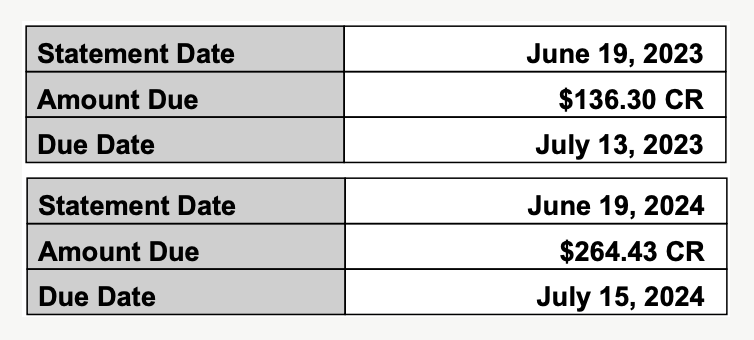
I have received a full month’s invoice while on the ULO rate. Below is a comparison with the previous year.

Compare 2023 vs 2024 Invoices

The above is a clear depiction of the resulting differences. We are able to get way more credits using the ULO rates. I call this a huge success, especially since we had a few hot days with the air conditioning running. Let us see how the remaining months will add to our credits.

Ultra-Low Overnight Rates

As of January 2024, Alectra Utilities begin to allow residential customers with net meters to take advantage of the Ultra-Low Overnight (ULO) rate schedule. Since I have plenty of battery backup, I thought this ULO pricing schedule is perfect for my solar and battery backup situation.

Ultra-Low Overnight Electricity Rates from Alectra Utilities

The idea is to use my batteries from 7am to 11pm during the non-ULO periods, and then replenish my batteries at the low $0.028 per kWh after 11pm. I also switched our two Green Vehicles to charge after 11pm.

Another great benefit of the ULO schedule is that electricity generated and feedback to the grid is credited with the increased rates. This means any surplus electricity sent back to the grid between 4pm and 9pm during the weekdays gets a premium credit of $0.286 per kWh. This is ten times more than the usage after 11pm!

Typical weekday grid utilization (May 24, 2024 – Friday)

After reconfiguring my solar – backup system to this new schedule, you can see from the above chart that my electricity consumption is now in alignment with the ULO schedule.

The process of switching from a Tier Rate schedule to the ULO schedule was not simple. I had to call Alectra customer support and waited for literally hours to get a staff member who was knowledgeable enough to help me with the switch.

I hope the pain is now over and we begin to reap the benefits of the ULO pricing. Let us hope that this summer we will be able to collect much more credit because of ULO.

Found Two HBA Cards for My NAS

About three weeks ago, I was casually browsing eBay and found this little gem, a Host Bus Adapter that can do PCIe 2.0 x8 (~4 to 8GB/s). This is way better than the one that I purchased earlier (GLOTRENDS SA3116J PCIe SATA Adapter Card) which can operate on a single lane of PCIe 3.0 yielding only 1GB/s. I could not pass it up at a price of only $ 40 CAD, so I purchased two of these to replace the old adapter card I had.

LSI 6Gbps SAS HBA 9200-8i IT Mode ZFS FreeNAS unRAID + 2*SFF-8087 SATA

This new card LSI 6Gbps SAS HBA 9200-8i only supports 8 SATA ports per card, so I had to get two of them to support all of the hard drives that I have. These SAS HBA cards must have the IT (initiator target) mode firmware because the default firmware (IR mode) supports a version of hardware RAID, which I did not want. With the IT mode, the hard drives will be logically separated on the card and only share the physical bandwidth of the PCIe bus. This is a must for ZFS.

With these new cards, my write throughput to my NAS hard drives now averages around 500MB/s. Previously, I was only getting about half of this.

I wish I would have found these sooner. Now I have two spare PCIe SATA expansion cards, one supporting 8 ports, and the other supporting 16 ports. I will place them on another server. Perhaps in a future Proxmox cluster project.

Tesla FSD Trial

Thanks to my cousins who also purchased Tesla using my Tesla referral code, I have some referral credits that I can use to select a 3 months trial of Tesla’s Full Self Driving (FSD) capability. On March 1st, 2024, I turned this feature on.

Today, we went out for lunch at Mr. Congee in Richmond Hill, Ontario. I thought I give this FSD a try.

It was pretty easy to set up. After agreeing with all the legal stuff and enable the feature, I just set the destination, set it to drive mode, wait for the autopilot icon to show, and double tap the right stalk and away we go!

There are three settings to FSD: chill, average, aggressive/assertive. I just left it on the default, average mode.

Pulling out of the driveway, the car was a bit jerky, but once it got on the road, it made all the right decisions. I override the mode on our neighbourhood feeder road from Leslie Street just to make sure that I can override the mode, and then quickly re-engage the FSD.

On this occasion, all traveling was done on regular roads, no highways, so it was more challenging for the car. It made all the turns correctly, but I did have to override it once when it did not recognize the restricted Via Bus Lane on Yonge Street. It even pulled into the parking area at Mr. Congee, but did not fully complete the trip by parking the car. I had to park it manually.

On the way back, it hesitated too much on a left-hand turn. I had to press the accelerator to help it along. Doing this did not override the FSD mode.

I will be driving to Montreal in about 4 weeks, so I will be looking forward to testing FSD on the highway.

My initial assessment is that I probably would not have paid any more money to gain this feature. Once again, thanks to my cousins who allowed me to experience this through the use of my Tesla redemption credits.

LVM to ZFS Migration

In a previous post, I described the hardware changes that I made to facilitate additional drive slots on my NAS Media Server.

We now need to migrate from an LVM system consisting of 40TB of redundant mirrored storage using mdadm to a ZFS system consisting of a single pool and a dataset. Below is a diagram depicting the logical layout of the old and the intended new system.

40TB of Redundant Storage
Logical Volume (LV)
Logical Volume (LV)
EXT 4 File System for Media Storage
Old Storage System
Old Storage System
50TB of Redundant Storage
ZFS Dataset
ZFS Dataset
New Storage System
New Storage System
LV Group of 4 Physical Volumes (PV)
PV
PV
10TB
mdadm mirror
10TB…
PV
PV
8TB
mdadm mirror
8TB…
PV
PV
10TB
mdadm mirror
10TB…
PV
PV
12TB
mdadm mirror
12TB…
ZFS Pool
ZFS Pool
12TB
Mirror VDEV
12TB…
10TB
Mirror VDEV
10TB…
8TB
Mirror VDEV
8TB…
10TB
Mirror VDEV
10TB…
6TB
Mirror VDEV
6TB…
4TB
Mirror VDEV
4TB…
512GB
L2ARC Cache
512GB…

Before the migration, we must backup all the data from the LVM system. I cobbled together a collection of old hard drives and then proceeded to create another LVM volume as the temporary storage of the content. This temporary volume will not have any redundancy capability, so if any one of the old hard drives fails, then out goes all the content. The original LVM system is mounted on /mnt/airvideo and the temporary LVM volume is mounted on /mnt/av2.

I used the command below to proceed with the backup.

sudo rsync --delete -aAXv /mnt/airvideo /mnt/av2 > ~/nohup.avs.rsync.out 2>&1 &

I can then monitor the progress of the backup with:

tail -f ~/nohup.avs.rsync.out

The backup took a little more than 7 days to copy around 32 TB of data from our NAS server. During this entire process, all of the NAS services continued to run, so that downtime was almost non-existent.

Once the backup is completed, I wanted to move all the services to the backup before I started to dismantle the old LVM volume. The following steps were done:

  • Stop all services on other machines that were using the NAS;
  • Stop all services on the NAS that were using the /mnt/airvideo LVM volume;
    • sudo systemctl stop apache2 smbd nmbd plexmediaserver
  • Unmount the /mnt/airvideo volume, and create a soft-link of the same name to the backup volume at /mnt/av2;
    • sudo umount /mnt/airvideo
    • sudo ln -s /mnt/av2 /mnt/airvideo
  • Restart all services on the NAS and the other machines;
    • sudo systemctl start apache2 smbd nmbd plexmediaserver
  • Once again, the downtime here was minimal;
  • Remove or comment out the entry in the /etc/fstab file that automatically mounts the old LVM volume on boot. This is no longer necessary because ZFS is remounted by default;

Now that the services are all up and running, we can then start destroying the old LVM volume (airvideovg2/airvideo) and volume group (airvideovg2). We can obtain a list of all the physical volumes that make up the volume group.

sudo pvdisplay -C --separator ' | ' -o pv_name,vg_name

  PV | VG
  /dev/md1 | airvideovg2
  /dev/md2 | airvideovg2
  /dev/md3 | airvideovg2
  /dev/md4 | airvideovg2
  /dev/nvme0n1p1 | airvideovg2

The /dev/mdX devices are the mdadm mirror devices, each consisting of a pair of hard drives.

sudo lvremove airvideovg2/airvideo
Do you really want to remove and DISCARD active logical volume airvideovg2/airvideo? [y/n]: y
  Flushing 0 blocks for cache airvideovg2/airvideo.
Do you really want to remove and DISCARD logical volume airvideovg2/lv_cache_cpool? [y/n]: y
  Logical volume "lv_cache_cpool" successfully removed
  Logical volume "airvideo" successfully removed

sudo vgremove airvideovg2
  Volume group "airvideovg2" successfully removed

At this point, both the logical volume and the volume group are removed. We say a little prayer to ensure nothing happens with our temporary volume (/mnt/av2), that is currently in operation.

We now have to disassociate the mdadm devices from LVM.

sudo pvremove /dev/md1
Labels on physical volume "/dev/md1" successfully wiped.
sudo pvremove /dev/md2
Labels on physical volume "/dev/md2" successfully wiped.
sudo pvremove /dev/md3
Labels on physical volume "/dev/md3" successfully wiped.
sudo pvremove /dev/md4
Labels on physical volume "/dev/md4" successfully wiped.
sudo pvremove /dev/nvme0n1p1
Labels on physical volume "/dev/nvme0n1p1" successfully wiped.

You can find the physical hard drives associated with each mdadm device using the following:

sudo mdadm --detail /dev/md1
#or
sudo cat /proc/mdstat

We then have to stop all the mdadm devices and zero their superblock so that we can reuse the hard drives to set up our ZFS pool.

sudo mdadm --stop /dev/md1
mdadm: stopped /dev/md1
sudo mdadm --stop /dev/md2
mdadm: stopped /dev/md2
sudo mdadm --stop /dev/md3
mdadm: stopped /dev/md3
sudo mdadm --stop /dev/md4
mdadm: stopped /dev/md4

# Normally you also need to do a --remove after the --stop,
# but it looks like the 6.5 kernel did the remove automatically.
#
# For all partitions used in the md device

for i in sdb1 sdc1 sdp1 sda1 sdo1 sdd1 sdg1 sdn1
do
	sudo mdadm --zero-superblock /dev/${i}
done

Now with all of the old hard drives freed up, we can repurpose them to create our ZFS pool. Instead of using the /dev/sdX reference of the physical device, it is recommended to use /dev/disk/by-id with the manufacturer’s model and serial number so that the ZFS pool can be moved to another machine in the future. We also used the -f switch to let ZFS know that it is okay to erase the existing content on those devices. The command to create the pool we named vault is this:

zpool create -f vault mirror /dev/disk/by-id/ata-ST10000VN0008-2JJ101_ZHZ1KMA0-part1 /dev/disk/by-id/ata-WDC_WD101EFAX-68LDBN0_VCG6VRWN-part1 mirror /dev/disk/by-id/ata-ST8000VN0022-2EL112_ZA1E8GW4-part1 /dev/disk/by-id/ata-ST8000VN0022-2EL112_ZA1E8S0V-part1 mirror /dev/disk/by-id/ata-ST10000VN0004-1ZD101_ZA2C69FN-part1 /dev/disk/by-id/ata-ST10000VN0004-1ZD101_ZA2964KD-part1 mirror /dev/disk/by-id/ata-ST12000VN0008-2YS101_ZRT008SC-part1 /dev/disk/by-id/ata-ST12000VN0008-2YS101_ZV701XQV-part1

# The above created the pool with the old drives from the old LVM volume group
# We then added 4 more drives, 2 x 6TB, and 2 x 4TB drives to the pool

# Adding another 6TB mirror:

sudo zpool add -f vault mirror /dev/disk/by-id/ata-WDC_WD60EFRX-68L0BN1_WD-WX31D87HDU09-part1 /dev/disk/by-id/ata-WDC_WD60EZRZ-00GZ5B1_WD-WX11D374490J-part1

# Adding another 4TB mirror:

sudo zpool add -f vault mirror /dev/disk/by-id/ata-ST4000DM004-2CV104_ZFN0GTAK-part1 /dev/disk/by-id/ata-WDC_WD40EZRX-00SPEB0_WD-WCC4E0354579-part1

We also want to add the old NVMe as ZFS L2ARC cache.

ls -lh /dev/disk/by-id/nvme-Samsung_SSD_970_EVO_Plus_500GB_S4P2NF0M419555D

lrwxrwxrwx 1 root root 13 Mar  2 16:02 /dev/disk/by-id/nvme-Samsung_SSD_970_EVO_Plus_500GB_S4P2NF0M419555D -> ../../nvme0n1

sudo zpool add vault cache /dev/disk/by-id/nvme-Samsung_SSD_970_EVO_Plus_500GB_S4P2NF0M419555D 

We can see the pool using this command:

sudo zpool list -v vault

NAME                                                    SIZE  ALLOC   FREE  CKPOINT  EXPANDSZ   FRAG    CAP  DEDUP    HEALTH  ALTROOT
vault                                                  45.4T  31.0T  14.4T        -         -     0%    68%  1.00x    ONLINE  -
  mirror-0                                             9.09T  8.05T  1.04T        -         -     0%  88.5%      -    ONLINE
    ata-ST10000VN0008-2JJ101_ZHZ1KMA0-part1                -      -      -        -         -      -      -      -    ONLINE
    ata-WDC_WD101EFAX-68LDBN0_VCG6VRWN-part1               -      -      -        -         -      -      -      -    ONLINE
  mirror-1                                             7.27T  6.49T   796G        -         -     0%  89.3%      -    ONLINE
    ata-ST8000VN0022-2EL112_ZA1E8GW4-part1                 -      -      -        -         -      -      -      -    ONLINE
    ata-ST8000VN0022-2EL112_ZA1E8S0V-part1                 -      -      -        -         -      -      -      -    ONLINE
  mirror-2                                             9.09T  7.54T  1.55T        -         -     0%  82.9%      -    ONLINE
    ata-ST10000VN0004-1ZD101_ZA2C69FN-part1                -      -      -        -         -      -      -      -    ONLINE
    ata-ST10000VN0004-1ZD101_ZA2964KD-part1                -      -      -        -         -      -      -      -    ONLINE
  mirror-3                                             10.9T  8.91T  2.00T        -         -     0%  81.7%      -    ONLINE
    ata-ST12000VN0008-2YS101_ZRT008SC-part1                -      -      -        -         -      -      -      -    ONLINE
    ata-ST12000VN0008-2YS101_ZV701XQV-part1                -      -      -        -         -      -      -      -    ONLINE
  mirror-4                                             5.45T  23.5G  5.43T        -         -     0%  0.42%      -    ONLINE
    ata-WDC_WD60EFRX-68L0BN1_WD-WX31D87HDU09-part1         -      -      -        -         -      -      -      -    ONLINE
    ata-WDC_WD60EZRZ-00GZ5B1_WD-WX11D374490J-part1         -      -      -        -         -      -      -      -    ONLINE
  mirror-5                                             3.62T  17.2G  3.61T        -         -     0%  0.46%      -    ONLINE
    ata-ST4000DM004-2CV104_ZFN0GTAK-part1                  -      -      -        -         -      -      -      -    ONLINE
    ata-WDC_WD40EZRX-00SPEB0_WD-WCC4E0354579-part1         -      -      -        -         -      -      -      -    ONLINE
cache                                                      -      -      -        -         -      -      -      -  -
  nvme-Samsung_SSD_970_EVO_Plus_500GB_S4P2NF0M419555D   466G  3.58G   462G        -         -     0%  0.76%      -    ONLINE

Once the pool is created, we wanted to set some pool properties so that in the future when we replace these drives with bigger drives, the pool will automatically expand.

zpool set autoexpand=on vault

With the pool created, we can then create our dataset or filesystem and its associated mount point. We also want to ensure that the filesystem also supports posixacl.

zfs create vault/airvideo
zfs set mountpoint=/mnt/av vault/airvideo
zfs set acltype=posixacl vault
zfs set acltype=posixacl vault/airvideo

We mount the new ZFS filesystem on /mnt/av because the /mnt/airvideo is soft-linked to the temporary /mnt/av2 volume that is still in operation. We first have to re-copy all our content from the temporary volume to the new ZFS filesystem.

sudo rsync --delete -aAXv /mnt/av2/ /mnt/av > ~/nohup.avs.rsync.out 2>&1 &

This took around 4 days to complete. We can all breathe easy again because all the data now have redundancy again! We can now bring the new ZFS filesystem live.

sudo systemctl stop apache2.service smbd nmbd plexmediaserver.service
sudo rm /mnt/airvideo
sudo zfs set mountpoint=/mnt/airvideo vault/airvideo
sudo systemctl start apache2.service smbd nmbd plexmediaserver.service

zfs list

NAME             USED  AVAIL     REFER  MOUNTPOINT
vault           31.0T  14.2T       96K  /vault
vault/airvideo  31.0T  14.2T     31.0T  /mnt/airvideo

The above did not take long and the migration is completed!

df -h /mnt/airvideo

Filesystem      Size  Used Avail Use% Mounted on
vault/airvideo   46T   32T   15T  69% /mnt/airvideo

Getting the capacity of our new ZFS filesystem shows that we now have 46TB to work with! This should last for at least a couple of years I hope.

I also did a quick reboot of the system to ensure it can come back up with the ZFS filesystem in tack and without issues. It has now been running for 2 days. I have not collected any performance statistics, but the services all feel faster.