Journey to Ubuntu 24.04 LTS Ended in Another Rescue

My NAS is currently running Ubuntu 22.04.5 LTS. I have tried in the past to perform a do-release-upgrade, and ended up with a system that will not boot.

Since then, I have moved many services away from the NAS. I thought I should give it one more try, and I did just that yesterday. Unfortunately the result ended up the same, resulting another rescue.

I thought I should document the rescue process here again.

# Wipe the root fs
mkfs.ext4 /dev/nvme1n1p2

# Restore from backup
mount /dev/nvme1n1p2 /mnt
mount /dev/backup_partition /mntb
rsync -aAXv /mntb/ /mnt/

# Ensure the root file system new UUID is the same in /etc/fstab
vi /mnt/etc/fstab

# chroot to install the boot partition
mount /dev/nvme1n1p1 /mnt/boot/efi
for i in /dev /dev/pts /proc /sys /run; do mount -B $i /mnt$i; done
mount -t efivarfs efivarfs /mnt/sys/firmware/efi/efivars 
chroot /mnt

# Identify your EFI partition again just in case (e.g., /boot/efi)
sudo grub-install

# Below is more forceful but mostly optional and unnecessary
# grub-install --target=x86_64-efi --efi-directory=/boot/efi --bootloader-id=GRUB --removable --recheck

sudo update-grub
exit

# Exit and reboot
umount -l /mnt
reboot

By now I have become an expert in rescuing failed upgrades with Ubuntu.

I have upgraded my TUF GAMING B550-PLUS motherboard to version 3636. This is a recently released BIOS from ASUS in January of 2026. My previous version of the BIOS was from 2024.

I will give myself another breather, say about a week, before attempting to try again.

Replacing Fail Drive in Existing VDEV

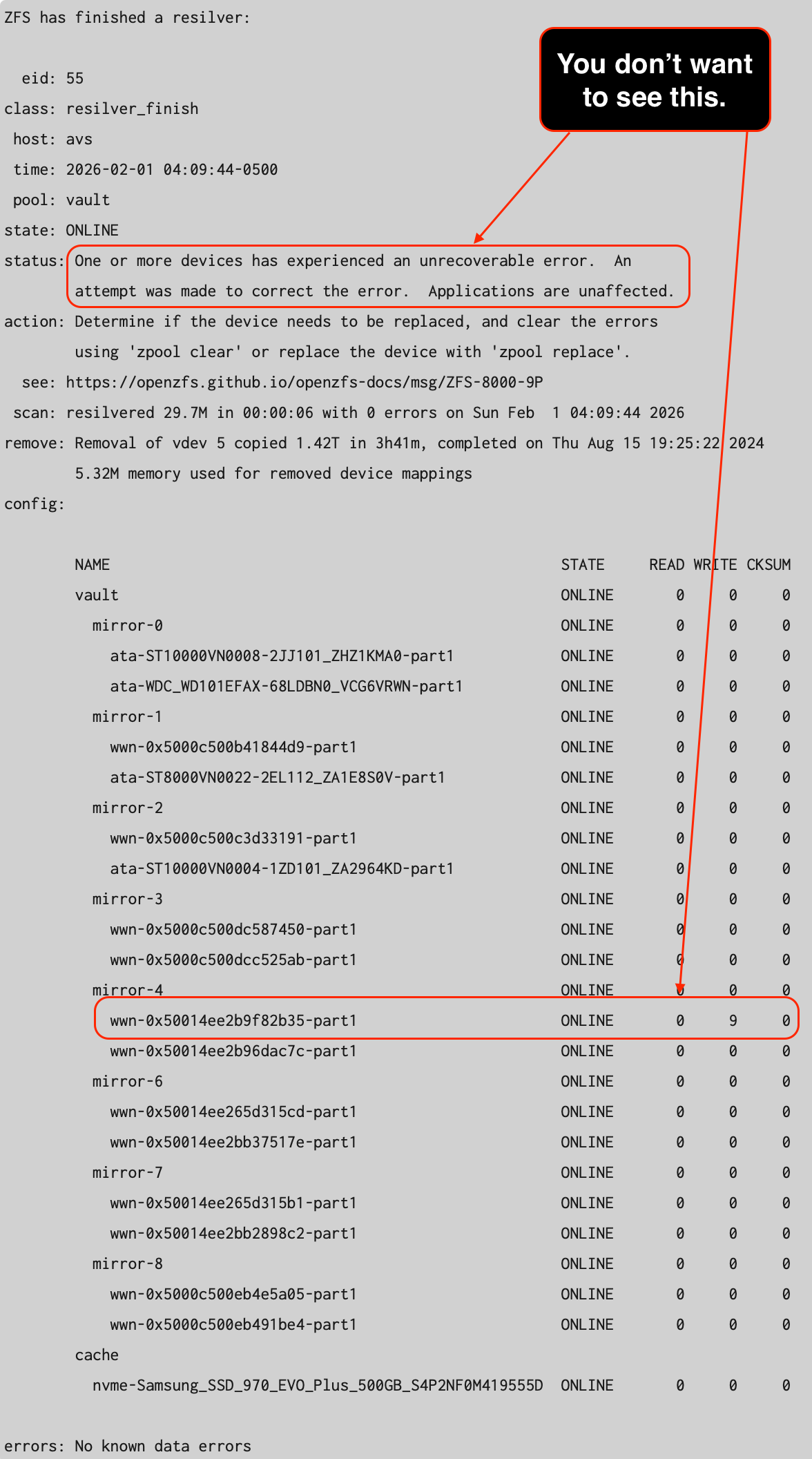
In a previous post, I discussed creating a brand new VDEV with new drives to replace an existing VDEV. However, there is another approach that I chose to use in a very recent event for my NAS (Network Attached Storage) hard drive when it started to encounter write errors and later checksum errors.

The output of zpool status -v

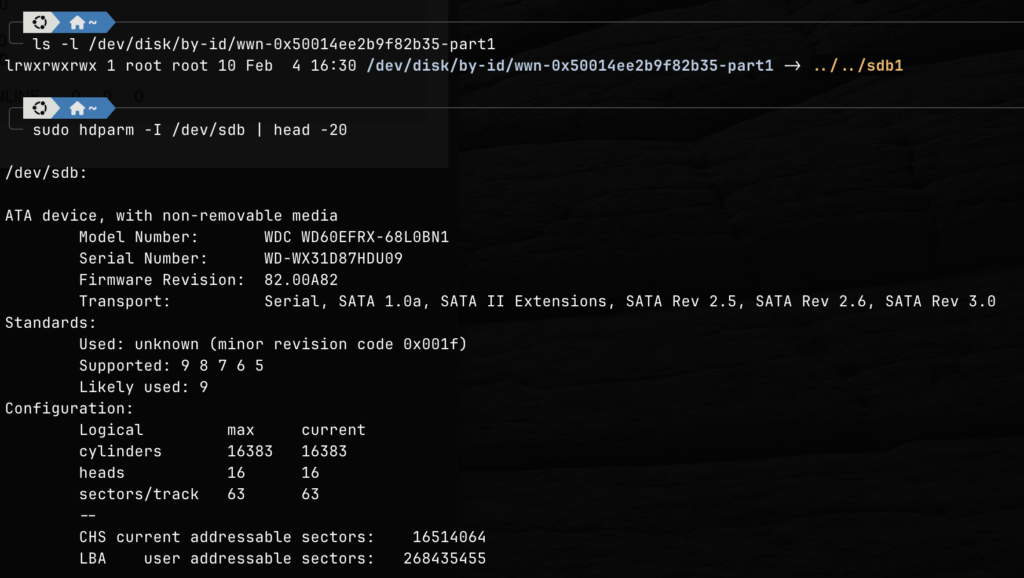
The affected VDEV is mirror-4. Since there are 16 hard drives involved in this storage pool, I had to find out which hard drive is having the issue. I had to perform the following command line operations to obtain the serial numbers of the drives within the VDEV.

Shell commands to get the Serial Number.

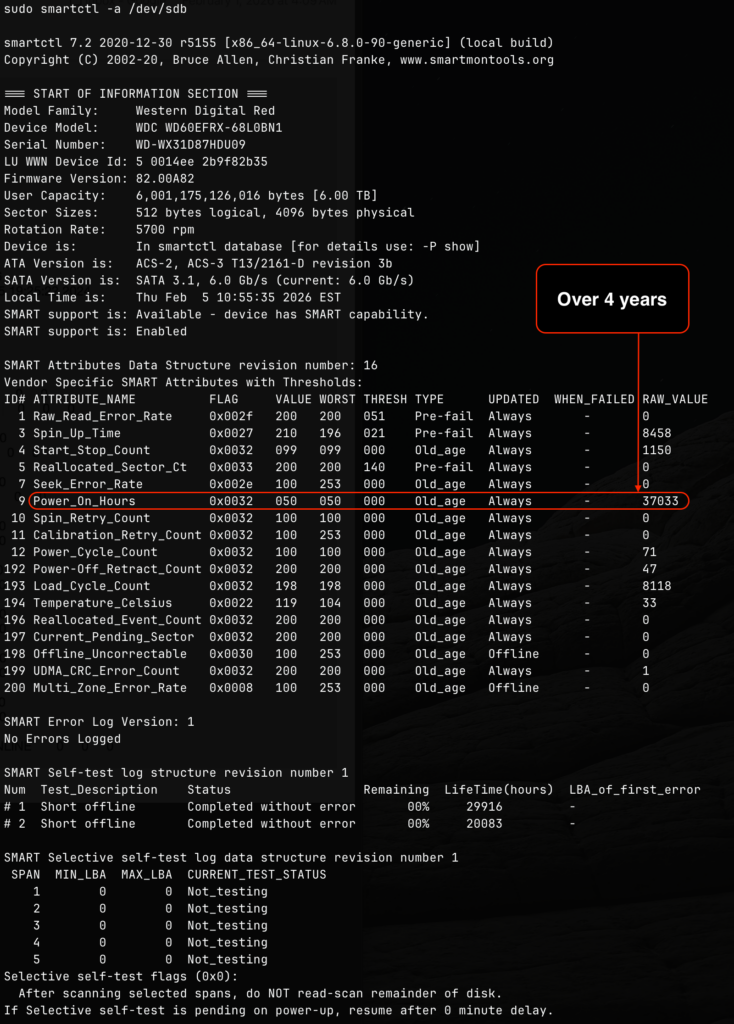
It was the WD60EFRX drive that failed. This is a WD60EFRX Western Digital Red 6TB 5400RPM drive. I was curious to see how old is the drive, so I used the smartctl utility to find out the number of powered on hours that this particular drive endured.

The 4.2 years (37033 / 24 / 365 = 4.2) is well over the 3 years warranty promised by Western Digital, so I took this unfortunate opportunity to get two new Seagate IronWolf Pro 12TB Enterprise NAS Internal HDD Hard Drive. The idea is not just to replace the drive with issue but also to expand the pool, and get an extra 6TB drive from the existing mirror that is still good, and use it as part of my offline backup strategy.

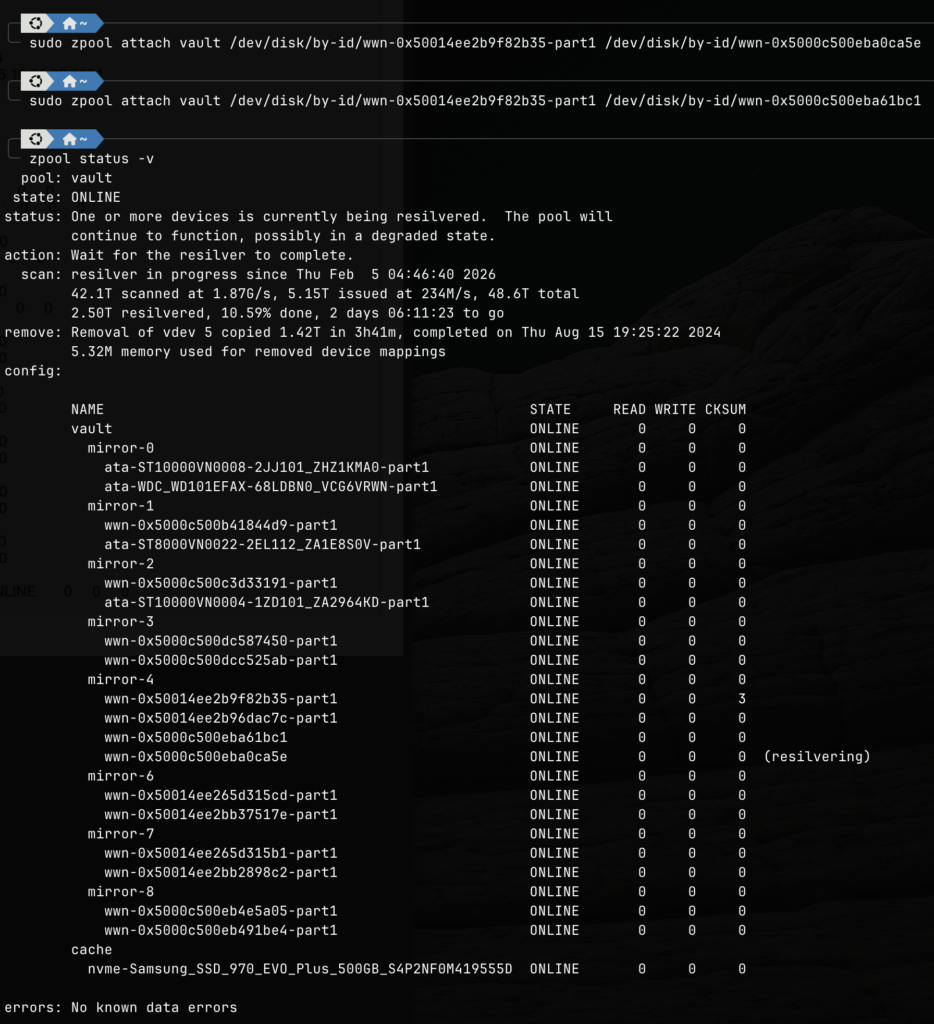
Once the new drives arrived and connected to the system, I simply performed an attach command to add them to the mirror VDEV.

commands to attach the new drive

After attaching the new drives, the zfs pool begins to automatically resilver. The above image was taken several hours after the attachment, and we are now waiting for the last drive to complete its resilvering. Since one of the new drive has already completed its resilvering, this means we have regained full redundancy.

After the resilvering is completed, I will then detach both old drives from the mirror using the detach command.

zpool detach vault /dev/disk/by-id/wwn-0x50014ee2b9f82b35-part1
zpool detach vault /dev/disk/by-id/wwn-0x50014ee2b96dac7c-part1

The first drive will be chucked into the garbage bin, and the second drive will be used for offline backup. Before I use the second drive for offline backup, I need to remove all zfs information and meta data from the drive to avoid any unintentional future conflicts. We do this using the labelclear command like below.

zpool labelclear /dev/disk/by-id/wwn-0x50014ee2b96dac7c

For extra safety, we can also destroy the old partition by using parted and relabeling the disk and create a new partition table. If the above command fails, we can use the dd command to just zero out the first few blocks of the drive.

dd if=/dev/zero of=/dev/disk/by-id/wwn-0x50014ee2b96dac7c bs=1M count=100

In summary, this is the general strategy moving forward. When a drive on my NAS pool starts to fail (before actual failure), I take the opportunity to replace all the drives in the entire mirror with higher capacity drives, and use the remaining good one to serve as offline backup.

Moving My Blog

Since I had difficulties in upgrading my NAS, as I detailed here on this post. I decided that I need to move my NAS services to another server called, workervm. The first service that I decided to move is this web site, my blog, which is a WordPress site hosted by an Apache2 instance with a MySQL database backend.

I decided that instead of installing all the required components on workervm, I will use run WordPress inside a podman container. I already have podman installed and configured for rootless quadlet deployment.

The first step is to backup my entire WordPress document root directory and moved the contents to the target server. I placed the contents on /mnt/hdd/backup on workervm. I also need to perform a dump of the SQL database. On the old blog server, I had to do the following:

sudo mysqldump -u wordpressuser -p wordpress > ../../wordpress.bk.sql

I then proceeded to create the following network, volume, and container files on workervm in ${HOME}/.config/containers/systemd:

I wanted a private network for all WordPress related containers to share and also ensure that DNS requests are resolved properly. Contents of wordpress.network:

[Unit]
Description=Network for WordPress and MariaDB
After=podman-user-wait-network-online.service

[Network]
Label=app=wordpress
NetworkName=wordpress
Subnet=10.100.0.0/16
Gateway=10.100.0.1
DNS=192.168.168.198

[Install]
WantedBy=default.target

I also create three podman volumes. The first is where the database contents will be stored. Contents of wordpress-db.volume:

[Unit]
Description=Volume for WordPress Database

[Volume]
Label=app=wordpress

Contents of wordpress.volume:

[Unit]
Description=Volume for WordPress Site itself

[Volume]
Label=app=wordpress

We also needed a volume to store Apache2 related configurations for WordPress. Contents of wordpress-config.volume:

[Unit]
Description=Volume for WordPress configurations

[Volume]
Label=app=wordpress

Now with the network and volumes configured, lets create our database container with wordpress-db.container:

[Unit]
Description=MariaDB for WordPress

[Container]
Image=docker.io/library/mariadb:10
ContainerName=wordpress-db
Network=wordpress.network
Volume=wordpress-db.volume:/var/lib/mysql:U
# Customize configuration via environment
Environment=MARIADB_DATABASE=wordpress
Environment=MARIADB_USER=wordpressuser
Environment=MARIADB_PASSWORD=################
Environment=MARIADB_RANDOM_ROOT_PASSWORD=1

[Install]
WantedBy=default.target

Note that the above container refers database volume that we configured earlier as well as the network. We are also using the community forked version of MySQL (MariaDB).

Finally we come to the configuration of the WordPress container, wordpress.container:

[Unit]
Description=WordPress Application
# Ensures the DB starts first
Requires=wordpress-db.service
After=wordpress-db.service

[Container]
Image=docker.io/library/wordpress:latest
ContainerName=wordpress-app
Network=wordpress.network
PublishPort=8168:80
Volume=wordpress.volume:/var/www/html:z
Volume=wordpress-config.volume:/etc/apache2:Z
# Customize via Environment
Environment=WORDPRESS_DB_HOST=wordpress-db
Environment=WORDPRESS_DB_USER=wordpressuser
Environment=WORDPRESS_DB_PASSWORD=################
Environment=WORDPRESS_DB_NAME=wordpress

[Install]
WantedBy=default.target

Notice the requirement for the database container to be started first, and this container also uses the same network but the two volumes are different.

We have to refresh the system since we changed the container configurations.

systemctl --user daemon-reload

We can then start the WordPress container with:

systemctl --user start wordpress

Once the container is started, we can check both the WordPress and its database container status with:

systemctl --user status wordpress wordpress-db

And track its log with:

journalctl --user -xefu wordpress

It is now time to restore our old content with:

podman cp /mnt/hdd/backup/. wordpress-app:/var/www/html/

podman unshare chmod -R go-w ${HOME}/.local/share/containers/storage/volumes/systemd-wordpress/_data

podman unshare chown -R 33:33 ${HOME}/.local/share/containers/storage/volumes/systemd-wordpress/_data

The copy will take some time, and once it is completed, we have to fix the permissions and ownerships. Note that both of these have to be performed with podman unshare command so that proper uid and gid mapping can be performed.

I also had to restore the database contents with:

cat wordpress.bk.sql | podman exec -i wordpress-db /usr/bin/mariadb -u wordpressuser --password=############# wordpress

Lastly I needed to modify my main/old Apache server where the port forwarding is directed to so that blog.lufamily.ca requests are forwarded to this new server and port.

Define BlogHostName blog.lufamily.ca
Define DestBlogHostName workervm.localdomain:8168

<VirtualHost *:443>
    ServerName ${BlogHostName}
    ServerAdmin kangclu@gmail.com
    DocumentRoot /mnt/airvideo/Sites/blogFallback
    Include /home/kang/gitwork/apache2config/ssl.lufamily.ca

    SSLProxyEngine  on

    ProxyPreserveHost On
    ProxyRequests Off

    ProxyPass / http://${DestBlogHostName}/
    ProxyPassReverse / http://${DestBlogHostName}/

    # Specifically map the vaultAuth.php to avoid reverse proxy
    RewriteEngine On
    RewriteRule /vaultAuth.php(.*)$ /vaultAuth.php$1 [L]

    ErrorLog ${APACHE_LOG_DIR}/blog-error.log
    CustomLog ${APACHE_LOG_DIR}/blog-access.log combined
</VirtualHost>

Note that on the old server I still have the document root pointed to a fallback directory. In this fallback directory I have php files that I needed to be served directly without being passed to WordPress but the requested path shares the same domain name as my WordPress site. The rewrite rule performs this short circuit processing. When vaultAuth.php is requested, we skip the reverse proxy all together.

This is working quite well. I am actually using the new location of this blog site to write this post. I plan to migrate the other services on my NAS in a similar manner with podman.

The idea is that once the majority of the services have been ported to workervm, then I can reinstall my NAS with a fresh install of Ubuntu 24.04 LTS without doing a migration.

Update 2026-02-28:

I had to move my blog to a different virtual machine because the current one had a network stack corruption. What I found was that the podman volume concept was super handy. I was able to use podman import/export commands to easily move my blog storage and database without having to worry about permissions and other file system nuances.

Ubuntu 22.04 LTS to 24.04 LTS Upgrade Fail

Last Saturday, I decided it was time to switch my NAS server from 22.04 LTS to 24.04 LTS. I’ve been putting it off for ages, worried that the upgrade might not go as planned and something could go wrong. Since 24.04 is already in its fourth point release, I figured the risks should be manageable and it’s time to take the plunge.

I backup my system nightly so the insurance was in place. After performing a final regular update to the system, I started with the following:

sudo apt update && sudo apt upgrade && sudo apt dist-upgrade

I then rebooted the system and executed:

sudo do-release-upgrade

After answering a few questions to save my custom configuration files for different services, it said the upgrade was done. I then rebooted the system, but BOOM! It won’t boot.

The BIOS knows the bootable drive, but when I tried to boot it, it just went back into the BIOS. It didn’t even give me a GRUB prompt or menu.

I figured this wasn’t a big deal, so I booted up the system with the 24.04 LTS Live USB. The plan is to just reinstall GRUB, and hopefully, that will fix the system.

Once I’ve booted into the Live USB and picked English as my language, I can jump into a command shell by pressing ALT-F2. Alternatively, you can press F1 and choose the shell option from the help menu. But, I found that the first method opens up a shell with command line completion, so I went with that.

The boot disk had the following layout (output from both fdisk and parted):

sudo fdisk -l /dev/nvme1n1
Disk /dev/nvme1n1: 931.51 GiB, 1000204886016 bytes, 1953525168 sectors
Disk model: Samsung SSD 980 PRO 1TB
Units: sectors of 1 * 512 = 512 bytes
Sector size (logical/physical): 512 bytes / 512 bytes
I/O size (minimum/optimal): 512 bytes / 512 bytes
Disklabel type: gpt
Disk identifier: 90B9F208-2D05-484D-8C8C-B3AE71475167

Device              Start        End    Sectors   Size Type
/dev/nvme1n1p1       2048    2203647    2201600     1G EFI System
/dev/nvme1n1p2    2203648 1921875000 1919671353 915.4G Linux filesystem
/dev/nvme1n1p3 1921875968 1953523711   31647744  15.1G Linux swap

sudo parted /dev/nvme1n1                                                                                                       
GNU Parted 3.4
Using /dev/nvme1n1
Welcome to GNU Parted! Type 'help' to view a list of commands.
(parted) p
Model: Samsung SSD 980 PRO 1TB (nvme)
Disk /dev/nvme1n1: 1000GB
Sector size (logical/physical): 512B/512B
Partition Table: gpt
Disk Flags:

Number  Start   End     Size    File system     Name  Flags
 1      1049kB  1128MB  1127MB  fat32                 boot, esp
 2      1128MB  984GB   983GB   ext4
 3      984GB   1000GB  16.2GB  linux-swap(v1)  swap  swap

As I described in this post, we want to make sure that the first partition is marked for EFI boot. This can be done in parted with:

set 1 boot on
set 1 esp on

I didn’t have to perform the above since the first partition (/dev/nvme1n1p1) is already recognized as EFI System. We also need to ensure that this partition is formatted with FAT32. This can be done with:

sudo mkfs.vfat -F 32 /dev/nvme1n1p1

Since this was already the case, I also did not have to perform this formatting step.

The next step is to mount the root directory and the boot partition.

mount /dev/nvme1n1p2 /mnt
mount /dev/nvme1n1p1 /mnt/boot/efi

We now need to bind certain directories under /mnt in preparation for us to change our root directory to /mnt.

for i in /dev /dev/pts /proc /run; do sudo mount --bind $i /mnt$i; done
mount --rbind /dev /mnt/dev
mount --rbind /sys /mnt/sys
mount --rbind /run /mnt/run
mount -t proc /proc /mnt/proc
chroot /mnt
grub-install --efi-directory=/boot/efi /dev/nvme1n1
update-grub

mount --make-rslave /mnt/dev
umount -R /mnt
exit

If we do not use the –rbind option for /sys, then we may get an EFI error when running grub-install. There are two alternatives that solves the same issue, although used less often, you can also choose one of the following (but not BOTH):

mount --bind /sys/firmware/efi/efivars /mnt/sys/firmware/efi/efivars
mount -t efivarfs none /sys/firmware/efi/efivars

The reinstallation of GRUB did not solve the problem. I had to perform a full system restore using my backup. The backup was created using rsync as described on this post. However, I learned that this backup was done incorrectly! I excluded certain directories using the name instead of /name. This caused more exclusion than intended. The correct method of the backup should be:

sudo rsync --delete \
        --exclude '/dev' \
        --exclude '/proc' \
        --exclude '/sys' \
        --exclude '/tmp' \
        --exclude '/run' \
        --exclude '/mnt' \
        --exclude '/media' \
        --exclude '/cdrom' \
        --exclude 'lost+found' \
        -aAXv / ${BACKUP}

and the restoration command is very similar:

mount /dev/sdt1 /mnt/backup
mount /dev/nvme1n1p2 /mnt/system

sudo rsync --delete \
        --exclude '/dev' \
        --exclude '/proc' \
        --exclude '/sys' \
        --exclude '/tmp' \
        --exclude '/run' \
        --exclude '/mnt' \
        --exclude '/media' \
        --exclude '/cdrom' \
        --exclude 'lost+found' \
        -aAXv /mnt/backup/ /mnt/system/

After the restore, double check that /var/run is soft-linked to /run.

Once the restoration is completed, I follow the above instructions again to re-install GRUB, and I was able to boot back into my boot disk.

Since this upgrade attempt has failed, I now have to figure out a way to move my system forward. I think what I will do is to port all of my services on my NAS as podman root-less quadlets, and then just move the services into a brand new Ubuntu clean installation. This is probably easier to manage in the future.

Processing Graphical Subtitles

In the past, when I got hold of a video that has hdmv_pgs_subtitle subtitle streams, I have always ignored it. Instead I tried to find a compatible subtitle in .srt format on the opensubtitles.org website. Today I came across a video that I am trying to archive that does not have the appropriate subtitles that I wanted. All of this would not have been an issue if my preferred mp4 format actually supports the hdmv_pgs_subtitle format.

I know an OCR (Optical Character Recognition) technique for extracting the subtitles from the hdmv_pgs_subtitle stream, but I am always in a hurry. This time, I bit the bullet and went down on this path.

Below are the steps that I had to go through.

First I had to download and install ffmpeg and mkvtoolnix packages on my Linux machine, and then execute the following commands to extract the Chinese subtitles that I wanted.

ffmpeg -y -i archive.mkv -map 0:s:1 -c:s dvdsub -f matroska chi.mkv
mkvextract chi.mkv tracks 0:mysub

After the above commands, I will have mysub.idx and mysub.sup files. The first are the time index codes and the latter are the subtitle images.

On a Windows virtual machine, I had to download Subtitle Edit, a subtitle editor tool that has the OCR functionality, and convert the mysub.idx and mysub.sup into mysub.srt, which I can then later use to re-incorporate back into the archive video file.

After the OCR is completed.

Above is a screenshot of the application after the OCR is completed. I found that the engine mode of Tesseract + LSTM worked the best. Of course, I had to select the matching language that is befitting of the subtitle. Once I saved the finished product as mysub.srt I can then use this file to create archive.mp4 using ffmpeg.

ffmpeg -i archive.mkv -i mysub.srt -map 0:v -map 0:a -map 1:s -c copy -c:s mov_text -metadata:s:s:0 language=chi archive.mp4

Video file successfully archived!

Update: 2026-06-19

Instead of using the Windows version of Subtitle Edit, we can use a command line version of vobsubocr. This is better for batch based processing. I installed vobsubocr on my NAS Ubuntu server with:

# Install OS dependencies
sudo apt update
sudo apt install build-essential cmake libtesseract-dev tesseract-ocr-eng libtiff5-dev tesseract-ocr-chi-sim

# First install Rust
curl --proto '=https' --tlsv1.2 -sSf https://sh.rustup.rs | sh

# We had to install from git
cargo install --git https://github.com/elizagamedev/vobsubocr

# Convert the *.idx and *.sub into srt
# Be sure file.sub is in the same directory as file.idx
vobsubocr -l eng -o output.srt file.idx

Linux Boot with No Networking

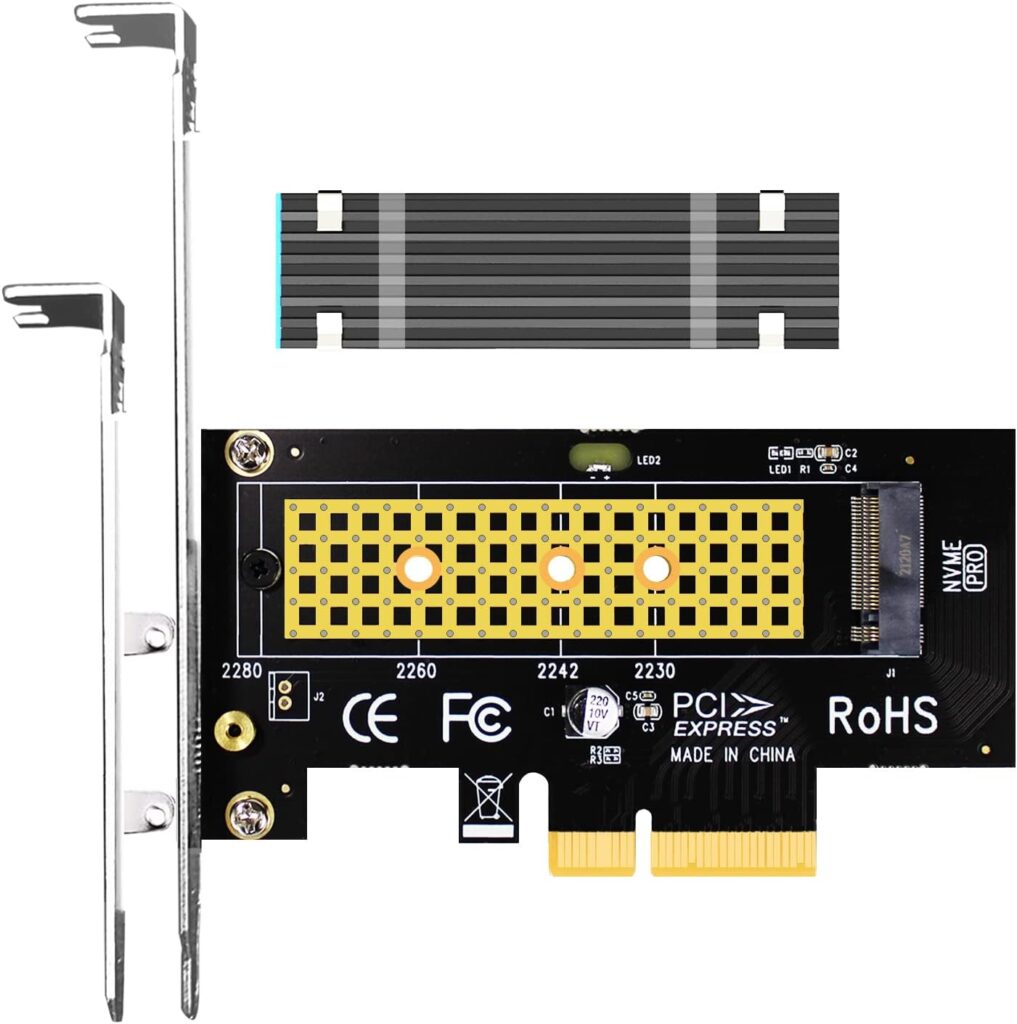
GLOTRENDS PA09-HS M.2 NVMe to PCIe 4.0 X4 Adapter

I recently wanted to install an M.2 NVMe to PCIe 4.0 X4 Adapter on an existing server. The idea was to install a new NVMe SSD drive, and the motherboard had no more M.2 sockets available.

The server is running Proxmox with Linux Kernel 6.8.12. I thought this should be a 15-minute exercise. How wrong I was. After installing all the hardware, the system booted up but there was no networking access. This was especially painful because I could no longer remote into the server. I had to go pull out an old monitor and keyboard and perform diagnostics.

I used the journalctl command to diagnose the issue, and found the following entry:

Feb 01 13:36:21 pvproxmox networking[1338]: error: vmbr0: bridge port enp6s0 does not exist
Feb 01 13:36:21 pvproxmox networking[1338]: warning: vmbr0: apply bridge ports settings: bridge configuration failed (missing ports)
Feb 01 13:36:21 pvproxmox /usr/sbin/ifup[1338]: error: vmbr0: bridge port enp6s0 does not exist
Feb 01 13:36:21 pvproxmox /usr/sbin/ifup[1338]: warning: vmbr0: apply bridge ports settings: bridge configuration failed (missing ports)

The above error message indicates that enp6s0 no longer exists. When I looked at earlier messages, I noticed this one:

Feb 01 13:36:15 pvproxmox kernel: r8169 0000:07:00.0 enp7s0: renamed from eth0

It looks like the interface name has been changed from enp6s0 to enp7s0. Therefore the correct remedy is to edit the /etc/network/interfaces to reflect the name change. Below is the new content of the file.

# cat /etc/network/interfaces
auto lo
iface lo inet loopback

iface enp7s0 inet manual

auto vmbr0
iface vmbr0 inet static
        address 192.168.188.2/24
        gateway 192.168.188.1
        bridge-ports enp7s0
        bridge-stp off
        bridge-fd 0

iface wlp5s0 inet manual

This would be very annoying if the old interface name was used in many other configuration files. There is one other reference that I found on the Internet (https://www.baeldung.com/linux/rename-network-interface) detailing a way to change the network interface name using the udev rules. I did not try this, but something to keep in mind in the future.

In a previous post and on another home server, I did fix the name using netplan, but Proxmox is not using it.

Simple File Transfer – NOT

Recently I needed to transfer a private binary file from one household to my server. We wanted this transfer to remain private because the file contains sensitive content.

In the past, I set up a WebDAV server using Apache2.4:

First I had to enable the DAV modules using the following command line on my Ubuntu server:

sudo a2enmod dav
sudo a2enmod dav_fs

I already had a directory set up on my file system called: /mnt/Sites/public_share. I made the following changes to my Apache2 configuration files.

<VirtualHost *:80>
    ServerName share.lufamily.ca
    RewriteEngine On
    RewriteCond %{HTTPS} off
    RewriteRule (.*) https://share.lufamily.ca
</VirtualHost>

<VirtualHost *:443>
    ServerName share.lufamily.ca
    ServerAdmin xxxxxxxx@gmail.com
    DocumentRoot /mnt/Sites/public_share

    <Directory /mnt/Sites/public_share>
        AllowOverride All
    </Directory>

    <Location />
        AuthType None
        DAV On
        Options +Indexes
        RewriteEngine off
    </Location>

    Include /home/xxxxx....xxxxxxx/ssl.lufamily.ca
</VirtualHost>

I did not have any authentication, because I restricted access to this directory with an override .htaccess file which contains the following:

<IfModule mod_headers.c>
    Header set X-XSS-Protection "1; mode=block"
    Header always append X-Frame-Options SAMEORIGIN
    Header set X-Content-Type-Options nosniff
    Header set X-Robots-Tag "noindex, nofollow"
</IfModule>

<Files ".htaccess">
  Order Allow,Deny
  Deny from all
</Files>

<RequireAny>
    Require ip 192.168.0.0/16
    Require ip 172.16.0.0/12
    Require ip 10.0.0.0/8

    # Sending computer external IP
    Require ip AAA.BBB.CCC.DDD
</RequireAny>

With the above setup, the other party just needs to open up a Finder on macOS or a Files Explorer on Windows with the above URL of https://share.lufamily.ca, and copy, delete, and open files like they normally would. The access will be private because it is restricted by their external IP address. With macOS, copying many gigabytes via WebDAV posed no issues.

Unfortunately, Windows is another matter. This worked for small files. For large files in the gigabytes range, Windows seemed to be stuck on 99% complete. This is because Windows locally caches the large transfer and reports it is 99% completed in a very short time, as the physical transfer catches up. But the actual time needed for the copying across the Internet is so long that Windows became confused thinking that we are copying a file that already exists yielding an unwanted error.

I had to come up with an alternative. We briefly dabbled with the idea of using FTP, but after a few minutes, this was simply a non-starter. The FTP passive mode requires ports to be opened on my firewall which is unrealistic for a long-term solution.

SFTP is a very secure protocol that uses OpenSSH. I also like this technique because the usage is more secure and will be governed by a pair of SSH Keys. The private key on the remote user side and the public key will be used to configure SSH on my server. I set up a ssh user called sftpuser. To prepare for this user to only have sftp access I made the following changes to the sshd configuration file /etc/ssh/sshd_config.

# Added the internal-sftp
Subsystem sftp /usr/lib/openssh/sftp-server internal-sftp

# Configure the local user scpuser to only do sftp
Match User sftpuser
    ChrootDirectory /home/sftpuser
    PasswordAuthentication no
    ForceCommand internal-sftp
    AllowTcpForwarding no
    X11Forwarding no
    AllowAgentForwarding no

I then created the sftpuser using the following command:

sudo adduser sftpuser                                                                                                                  sudo chown root:root /home/sftpuser                                                                                                    
sudo mkdir /home/sftpuser/uploads                                                                                                      sudo chown sftpuser:sftpuser /home/sftpuser/uploads                                                                                    
sudo chmod -R 0755 /home/sftpuser/uploads

This user will not be able to login into a shell and can only use sftp. I also disable the password authentication just in case. For the remote party to upload the file, they will need to provide a public ssh key which needs to be stored in the .ssh/authorized_keys file. The contents of which look something like this:

ssh-rsa AAAAB3NzaC1yc2EAAAADAQABAAACAQCliK6NZx6JJBcK0+1GtEe8H6QpN1BHDRgq/vtiEAfwzcjN1dBtQhfplyDxEXXXXXXXXXXXXXXXXXXXXXXXXXXXXXXXXXXXXXXXXXXXXXXXXXF+OLV9qWMsE/g+1H4oyLRqzQnD8w7S4RBUJzrrZIpLEzYRf43pWSW9Y3220swlIEYxIOIcJIc8prgzDbECt3CR/BsRDYNZA5uxdPYLwh1YtTX8GEqoctJifLrC4OomKkczDek9k/MHdFbWZ0LdK3AB287nr/Q4Lb8GgfU3bEhF+AMSWM8r/OHC1QBPYYYYYYYYYYYYYYYYYYYYYYYYYYYYYYYYYbH8npyFsC3rADnjfFsB4VkkiNDDIZbZkV2vBf3sJ49Q1Y3uHugWxITWImKjfl+YUdGMalbSfP8UueKSx3sDGQQDXZjzrwnX3KPie0Qiz2rQtrppB7dA5CvOb86Q== guest

The above is just a single line in the file.

With the above setup, a Linux user can simply do the following to transfer a file to my server in a very secure way.

sftp -P55522 sftpuser@lufamily.ca <<< 'put /usr/bin/bash uploads/sample.bin'

The above command will upload the bash binary to my server.

An attacker trying to login using ssh will get the following:

❯ ssh -p 55522 sftpuser@lufamily.ca
This service allows sftp connections only.
Connection to lufamily.ca closed.

On Linux or macOS, the remote user can use ssh-keygen to create the public key which by default resides in ~/.ssh/id_dsa.pub. All I need to do is copy the contents of the public key and add it to my .ssh/authorized_keys.

For Windows users, they can generate the key using Windows PowerShell. Below is an example:

> ssh-keygen -t rsa -b 4096
Generating public/private rsa key pair.
Enter file in which to save the key (C:\Users\kang/.ssh/id_rsa):
Enter passphrase (empty for no passphrase):
Enter same passphrase again:
Your identification has been saved in C:\Users\kang/.ssh/id_rsa
Your public key has been saved in C:\Users\kang/.ssh/id_rsa.pub
The key fingerprint is:
SHA256:hV6vcChUwpxXXXXXXXXXXXXXXXXXXXXXXXXXX0aTkJZ2M kang@win10
The key's randomart image is:
+---[RSA 4096]----+
|  . Eo.==..      |
|   * *+++=+      |
|  . @ oo.=+* .   |
| . = o..B+=.* .  |
|  .   .oSO.o..   |
|       ..oo.     |
|          .      |
|                 |
|                 |
+----[SHA256]-----+

> cat .\.ssh\id_rsa.pub
ssh-rsa AAAAB3NzaC1yc2EZZZZZZZZZZZZZZZZZZZZZZZZZZZZZZZZZZZZZZZZZZZZZZZZZZZZZZZZQQWgIVShifqFxq78MWQEJrM2xrVQXlPHUncNosEm6P/l0LdWu1nRbIccKMNsmpPK7JOv9XF+CsrtlltnhwDqiuflCGftzhrlmBz8BOJRiwD0Fl1IfQ+Qg7Z1nvIo6+kpkBw7SGPN7fbJxDPPHmc9iPB4RnlG46v6ymd4KM0h1cGlReCly2PTxTG1dcPuDbrBIIdEHoN/40hojrooQf+cQNprvYZY59EjvC0NoZsfiKGDHHq3S7HRPGns9Oo4y8vFl1DrJZFIvBVdjjL28JsmIdeKbMhCynkzIkPLPvsiplxkEF0RQ9fFcIsucuD8leJmMDNPas+8EdueQ== kang@win10

To copy a binary you can do the following:

> sftp -P55522 sftpuser@lufamily.ca
Connected to lufamily.ca.
sftp> put "C:\Windows\System32\tar.exe" uploads/junk.exe
Uploading C:/Windows/System32/tar.exe to /uploads/junk.exe
tar.exe                                                                               100%   54KB  13.1MB/s   00:00
sftp> ls
uploads
sftp> cd uploads
sftp> ls
junk.exe    sample.bin
sftp>

The above is very similar to Linux and the Mac. Windows and its PowerShell have come a long way in terms of adopting Posix-like capabilities.

For those who want to use WinSCP, a much nicer GUI on Windows, you will need to convert the .ssh/id_rsa private key into ppk format. Use the command below to achieve this.

"c:\Program Files (x86)\WinSCP\WinSCP.com" /keygen id_rsa /output=id_rsa.ppk

You can then set up WinSCP authentication and load the ppk file.

So what I thought would be a simple matter turned out to be quite a deep rabbit hole. Hopefully with this in place, future transfers can be done quite quickly and securely.

Replacing VDEV in a ZFS Pool

Several months ago I had an old 3TB hard drive (HDD) crashed on me. Luckily it was a hard drive that is primarily used for backup purposes, so the data lost can quickly be duplicated from source by performing another backup. Since it was not critical that I replace the damaged drive immediately, it was kind of left to fester until today.

Recently I acquired four additional WD Red 6TB HDD, and I wanted to install these new drives into my NAS chassis. Since I am opening the chassis, I will irradicate the damaged drive, and also take this opportunity to swap some old drives out of the ZFS pool that I created earlier and add these new drives into the pool.

I first use the following command to add two additional mirror vdev’s each composed of the two new WD Red drives.

sudo zpool add vault mirror {id_of_drive_1} {id_of_drive_2}

The drive id’s is located in the following path: /dev/disk/by-id and is typically prefixed with ata or wwn.

This created two vdev’s into the pool, and I can remove an existing vdev. Doing so will automatically start redistributing the data on the removing vdev to the other vdev’s in the pool. All of this is performed while the pool is still online and running to service the NAS. To remove the old vdev, I execute the following command:

sudo zpool remove vault {vdev_name}

In my case, the old vdev’s name is mirror-5.

Once the remove command is given, the copying of data from the old vdev to the other vdev’s begins. You can check the status with:

sudo zpool status -v vault

The above will show the copying status and the approximate time it will take to complete the job.

Once the removal is completed, the old HDD of mirror-5 is still labeled for ZFS use. I had to use the labelclear command to clean the drive so that I could repurpose the drives for backup duty. Below is an example of the command.

sudo zpool labelclear sdb1

The resulting pool now looks like this:

sudo zpool list -v vault

(Output truncated)
                                                                                                                     NAME                                                    SIZE  ALLOC   FREE
vault                                                  52.7T  38.5T  14.3T
  mirror-0                                             9.09T  9.00T  92.4G
    ata-ST10000VN0008-2JJ101_ZHZ1KMA0-part1                -      -      -
    ata-WDC_WD101EFAX-68LDBN0_VCG6VRWN-part1               -      -      -
  mirror-1                                             7.27T  7.19T  73.7G
    wwn-0x5000c500b41844d9-part1                           -      -      -
    ata-ST8000VN0022-2EL112_ZA1E8S0V-part1                 -      -      -
  mirror-2                                             9.09T  9.00T  93.1G
    wwn-0x5000c500c3d33191-part1                           -      -      -
    ata-ST10000VN0004-1ZD101_ZA2964KD-part1                -      -      -
  mirror-3                                             10.9T  10.8T   112G
    wwn-0x5000c500dc587450-part1                           -      -      -
    wwn-0x5000c500dcc525ab-part1                           -      -      -
  mirror-4                                             5.45T  1.74T  3.72T
    wwn-0x50014ee2b9f82b35-part1                           -      -      -
    wwn-0x50014ee2b96dac7c-part1                           -      -      -
  indirect-5                                               -      -      -
  mirror-6                                             5.45T   372G  5.09T
    wwn-0x50014ee265d315cd-part1                           -      -      -
    wwn-0x50014ee2bb37517e-part1                           -      -      -
  mirror-7                                             5.45T   373G  5.09T
    wwn-0x50014ee265d315b1-part1                           -      -      -
    wwn-0x50014ee2bb2898c2-part1                           -      -      -
cache                                                      -      -      -
  nvme-Samsung_SSD_970_EVO_Plus_500GB_S4P2NF0M419555D   466G   462G  4.05G

The above indirect-5 can be safely ignored. It is just a reference to the old mirror-5.

This time we replaced the entire vdev, another technique is to replace the actual drives within the vdev. To do this, we will have to use the zpool replace command. We may also have to perform a zpool offline first before the replace command. This can be successively done on all the old drives in the mirror with newer drives with larger capacities to increase an existing vdev’s size.

Found Two HBA Cards for My NAS

About three weeks ago, I was casually browsing eBay and found this little gem, a Host Bus Adapter that can do PCIe 2.0 x8 (~4 to 8GB/s). This is way better than the one that I purchased earlier (GLOTRENDS SA3116J PCIe SATA Adapter Card) which can operate on a single lane of PCIe 3.0 yielding only 1GB/s. I could not pass it up at a price of only $ 40 CAD, so I purchased two of these to replace the old adapter card I had.

LSI 6Gbps SAS HBA 9200-8i IT Mode ZFS FreeNAS unRAID + 2*SFF-8087 SATA

This new card LSI 6Gbps SAS HBA 9200-8i only supports 8 SATA ports per card, so I had to get two of them to support all of the hard drives that I have. These SAS HBA cards must have the IT (initiator target) mode firmware because the default firmware (IR mode) supports a version of hardware RAID, which I did not want. With the IT mode, the hard drives will be logically separated on the card and only share the physical bandwidth of the PCIe bus. This is a must for ZFS.

With these new cards, my write throughput to my NAS hard drives now averages around 500MB/s. Previously, I was only getting about half of this.

I wish I would have found these sooner. Now I have two spare PCIe SATA expansion cards, one supporting 8 ports, and the other supporting 16 ports. I will place them on another server. Perhaps in a future Proxmox cluster project.