
In a previous post, I commented on our AI server containing an old P40 GPU failed. We replaced our server with the following parts.
| Component | Description |
|---|---|
| CPU | AMD Ryzen 9 9900X 4.4 GHz 12-Core Processor |
| CPU Cooler | Thermalright Peerless Assassin 120 SE 66.17 CFM CPU Cooler |
| Motherboard | Asus B650E MAX GAMING WIFI ATX AM5 Motherboard |
| Memory | Crucial Pro 64 GB (2 x 32 GB) DDR5-6000 CL40 Memory |
| Storage | Samsung 990 Pro 2 TB M.2-2280 PCle 4.0 X4 NVME Solid State Drive |
| GPU | 2 x EVGA FTW3 ULTRA GAMING GeForce RTX 3090 24 GB Video Card (refurbished) |
| Case | Fractal Design Meshify 3 XL ATX Full Tower Case |
| Power Supply | SeaSonic PRIME TX-1600 ATX 3.1 1600 W 80+ Titanium Certified Fully Modular ATX Power Supply |
I purchased all of our components at Amazon and the total (including shipping and taxes) came to to be $6,271.22. The most expensive parts were the GPU ($2,979.98), the power supply ($903.95), and then the memory ($843.19). All prices are quoted in Canadian dollars.
I had no issues in building the computer.
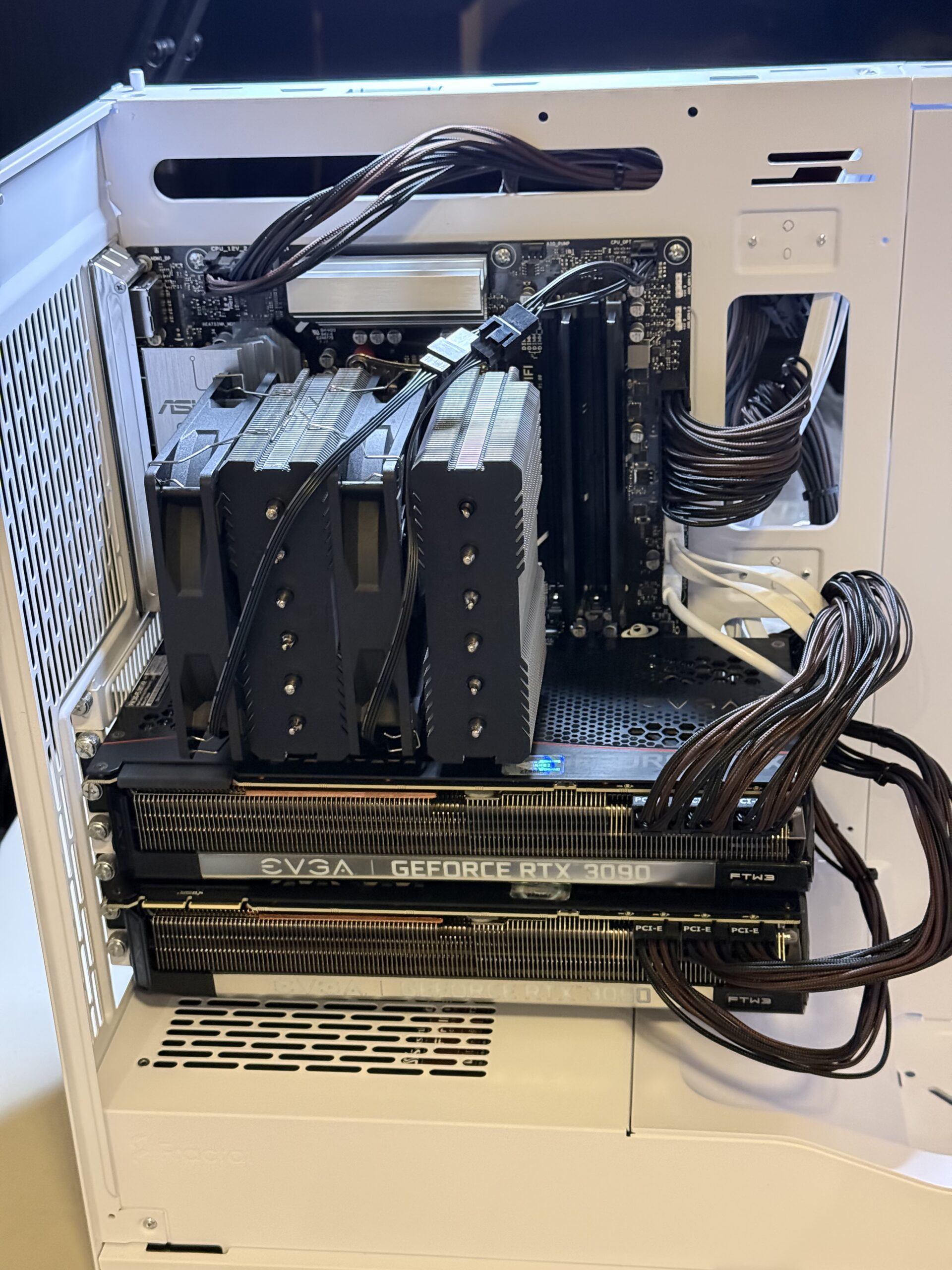
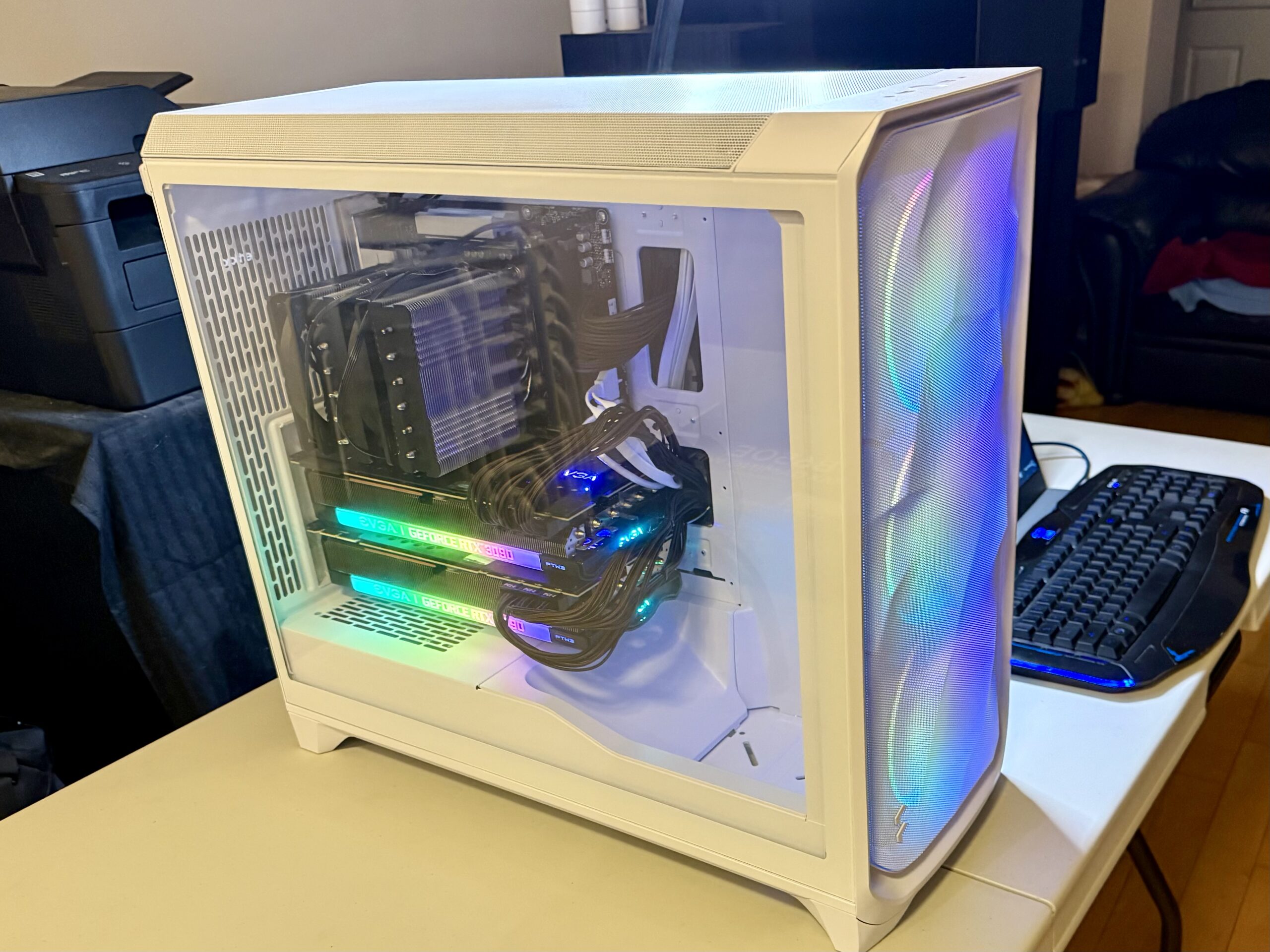
As you can see above, after the CPU cooler and the GPU’s were installed you can barely see the motherboard. Although there are still PCIe slots available, there is no more room to actually place new PCIe cards. We still have two more DIMM slots, so we can consider a future memory upgrade.
One of the main concerns I had was to plug this computer into an electrical socket that will not trip any of my breakers. The 1,600W power supply is awfully close to the maximum theoretical limit of a 15A breaker in our house, which would be around 1,800W. This server is too powerful for any of my current UPS units or power bars. It will have to be connected directly to a wall on a circuit that is not loaded by other appliances.
After testing the memory using MemTest, I installed Ubuntu Server 24.04.3 LTS. To prepare the machine for AI work load, I will then need to install Nvidia CUDA.
Installing CUDA
The first step that I did was to install the Nvidia CUDA. I followed the steps here for Ubuntu. I specifically follow the Network Repository Installation directions.
❯ sudo su -
# wget https://developer.download.nvidia.com/compute/cuda/repos/ubuntu2404/x86_64/cuda-keyring_1.1-1_all.deb
# dpkg -i cuda-keyring_1.1-1_all.deb

# apt install cuda-toolkit
# apt install nvidia-gds
# reboot
After the reboot, I tested CUDA by doing the following:
# nvidia-smi Installing vLLM
I then proceeded to install vLLM using the Quick Start guide for Nividia CUDA.
However I just use the Quick Start guide as a guidance. Ultimately I followed the following steps:
❯ sudo apt install build-essential python3.12-dev

❯ mkdir py_vllm
❯ cd py_vllm

❯ python3 -m venv vllm_cuda13_env
❯ source vllm_cuda13_env/bin/activate

❯ pip install torch-c-dlpack-ext
❯ pip install torch torchvision --index-url https://download.pytorch.org/whl/cu130
❯ pip install vllm --pre --extra-index-url https://wheels.vllm.ai/nightly
I tried to run vLLM using Podman but I always run out of memory for certain models, so I chose the Python method of deployment.
I then try to run it with Qwen/Qwen3-14B from Hugging Face. Since I have two GPU’s, I set the tensor-parallel-size to 2.
export VLLM_USE_V1=1 vllm serve Qwen/Qwen3-14B --tensor-parallel-size=2It took a minute or two to download the model and initialize the GPU’s. Once it is up and running, I verified that it was running by using a simple curl command.
❯ curl http://localhost:8000/v1/models | jq .
  % Total    % Received % Xferd  Average Speed   Time    Time     Time  Current
                                 Dload  Upload   Total   Spent    Left  Speed
100   463  100   463    0     0   615k      0 --:--:-- --:--:-- --:--:--  452k
{
  "object": "list",
  "data": [
    {
      "id": "Qwen/Qwen3-14B",
      "object": "model",
      "created": 1766511858,
      "owned_by": "vllm",
      "root": "Qwen/Qwen3-14B",
      "parent": null,
      "max_model_len": 40960,
      "permission": [
        {
          "id": "modelperm-bc2e247073d50d67",
          "object": "model_permission",
          "created": 1766511858,
          "allow_create_engine": false,
          "allow_sampling": true,
          "allow_logprobs": true,
          "allow_search_indices": false,
          "allow_view": true,
          "allow_fine_tuning": false,
          "organization": "*",
          "group": null,
          "is_blocking": false
        }
      ]
    }
  ]
}
To deploy a model, I created the following systemd unit file in /etc/systemd/system called vllm.service. This way vLLM will automatically start when the host is rebooted.
[Unit]
Description=vLLM OpenAI Compatible Server
After=network.target

[Service]
# User and Group to run the service as (e.g., 'youruser', 'yourgroup')
User=kang
Group=kang
# Set the working directory
WorkingDirectory=/home/kang/py_vllm
Environment=VLLM_USE_V1=1

# The command to start the vLLM server
# Use 'exec' to ensure systemd correctly manages the process
ExecStart=/home/kang/py_vllm/vllm_cuda13_env/bin/python -m vllm.entrypoints.openai.api_server --model Qwen/Qwen3-14B --host 0.0.0.0 --port 8000 --tensor-parallel-size 2 --enable-auto-tool-choice --tool-call-parser hermes

# Restart the service if it fails
Restart=always

[Install]
WantedBy=multi-user.target
I used 0.0.0.0 as the host so that any machine on the network can connect to the service. If you use 127.0.0.1, only local sessions can connect.
To enable the above service, I had to do the following:
❯ sudo systemctl daemon-reload
❯ sudo systemctl enable vllm.service
❯ sudo systemctl start vllm.service
I also enabled tooling for my Opencode.ai experiments. vLLM ended up using all of 48GB VRAM on both GPU’s for the Qwen LLM as well as for caching. Impressive!
Installing Podman and Prepare for Quadlets
For everyday chats, I also configured a version of Perplexica. I chose to use Podman to install this, specifically using Podman Quadlet. The idea is to run Perplexica under my user id (kang), instead of running it as root. Our first step is to install Podman and prepare our user account for quadlets.
Note aside from explicit sudo references all other commands are run as the user.
Install Podman:
sudo apt install podmanThe container requires user and group ids so we need to map id spaces to my user account.
sudo usermod --add-subuids 100000-170000 --add-subgids 100000-170000 ${USER}

cat /etc/subuid
cat /etc/subgid
We need to have an active user session for the container after a reboot, so we need my account to linger around.
sudo loginctl enable-linger ${USER}We need to proactively increase the kernel key size to avoid any exceeding quota situations like, “Disk quota exceeded: OCI runtime error”. Not just for this container, but also for any other future containers.
echo "kernel.keys.maxkeys=1000" | sudo tee -a /etc/sysctl.d/custom.confLastly, we need to prepare two directories for the containers. The first will house the systemd unit definition of the container. The second is a directory that will act as local storage for the container.
mkdir -p $HOME/.config/containers/systemd
mkdir -p $HOME/containers/storage
If we have any previous containers running, we need to perform a system migrate. I did not perform this, because I ensure that I had no other Podman containers running. You also can enable the auto update feature for podman. I also did not do this, as I prefer to this manually.
podman system migrate
systemctl --user enable --now podman-auto-update
For a more control networking experience and behaviour, we want to create our own container network. This will also help with DNS resolution. We need to create the network definition in $HOME/.config/containers/systemd/${USER}.network be sure to replace ${USER} reference below with the actual user account name.
[Unit]
Description=${USER} network
After=podman-user-wait-network-online.service

[Network]
NetworkName=${USER}
Subnet=10.168.0.0/24
Gateway=10.168.0.1
DNS=192.168.168.198

[Install]
WantedBy=default.target
We can then enable this network with the following commands:
systemctl --user daemon-reload
systemctl --user start ${USER}-network

podman network ls
The last command just verifies that the network is running and visible to Podman.
Installing Perplexica
Now that our Quadlet environment for the user account is all prepared, we can then proceed to install Perplexica.
First we need to create two local directories that Perplexica will use.
mkdir -p $HOME/containers/storage/perplexica/data
mkdir -p $HOME/containers/storage/perplexica/uploads
We then need to define the container in $HOME/.config/containers/systemd/perplexica.container:
[Unit]
Description=Perplexica

[Container]
ContainerName=perplexica
Image=docker.io/itzcrazykns1337/perplexica:latest
AutoUpdate=registry

HealthCmd=curl http://localhost:3000
HealthInterval=15m
UserNS=keep-id:uid=1000,gid=1000

Network=kang.network
HostName=perplexica
PublishPort=3000:3000

Volume=%h/containers/storage/perplexica/data:/home/perplexica/data
Volume=%h/containers/storage/perplexica/uploads:/home/perplexica/uploads

[Service]
Restart=always
TimeoutStartSec=300

[Install]
WantedBy=default.target
Be sure to double check your account uid and gid is 1000. If not, then replace the above appropriately.
Now we can start Perplexica.
systemctl --user daemon-reload
systemctl --user start perplexica
Note that the above commands are run with the user account and not with sudo or as root. Also note the --user option.
Once the service is running, you can get its logs by doing the following:
journalctl --user -u perplexicaYou can also see all containers running as quadlets using:
systemctl --user statusWith Perplexica running, we can proceed to its Web UI (http://localhost:3000) using our browser and point to our vLLM instance by creating an OpenAI connection type.
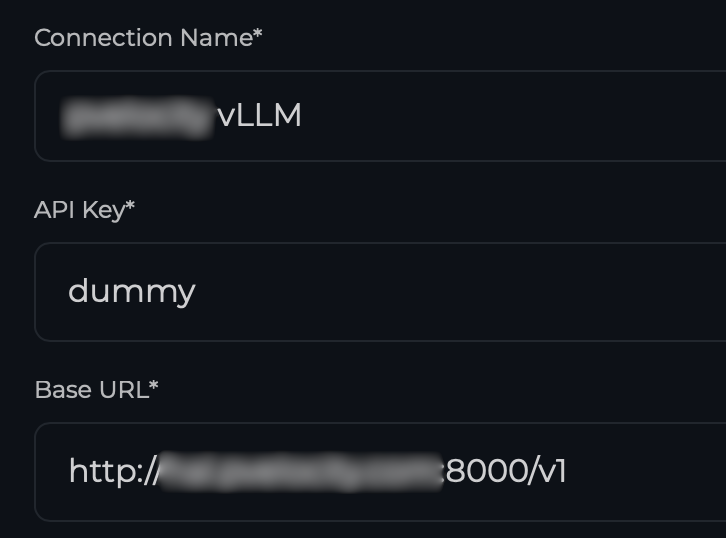
Once the connection is established, you can proceed to add the Chat and Embedding Models. In our case I used Qwen/Qwen3-14B as the model key. This is the same as the model id that vLLM is currently serving. The model name can be anything you assign.
That is it! We now have a local chat service with Perplexica, and I can use the OpenAI compatible API with vLLM.
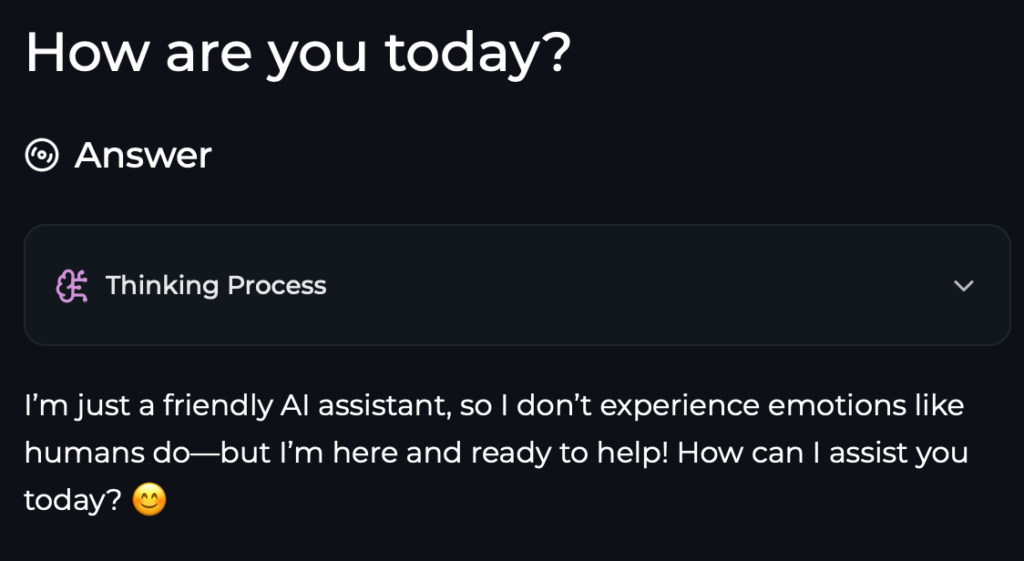
Here is an example of using CURL with the API:
❯ curl -X POST "http://localhost:8000/v1/responses" \
  -H "Content-Type: application/json" \
  -d '{
    "model": "Qwen/Qwen3-14B",
    "input": "How are you today?"
  }' | jq -r '.output[0].content[0].text'
  % Total    % Received % Xferd  Average Speed   Time    Time     Time  Current
                                 Dload  Upload   Total   Spent    Left  Speed
100  1791  100  1721  100    70    448     18  0:00:03  0:00:03 --:--:--   466
<think>
Okay, the user asked, "How are you today?" I need to respond appropriately. First, I should acknowledge their greeting and express that I'm doing well. Since I don't have feelings, I can't experience emotions, but I can simulate a friendly response. I should keep it positive and open-ended to encourage further conversation. Maybe add an emoji to keep it friendly. Also, I should invite them to ask questions or share something. Let me check if the response is natural and not too robotic. Avoid any technical jargon. Make sure it's concise but warm. Alright, that should work.
</think>

I'm doing great, thank you! I'm always ready to chat and help out. How about you? 😊 What's on your mind today?