
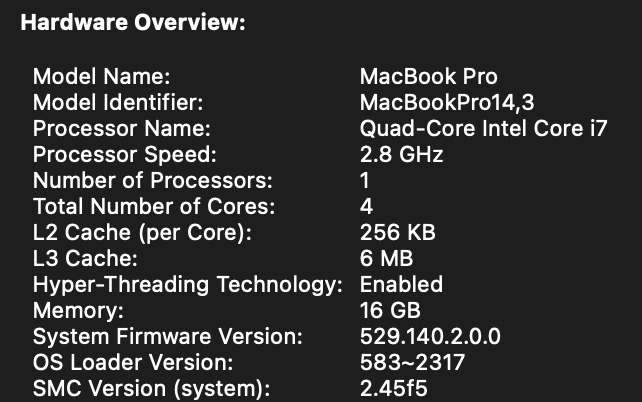
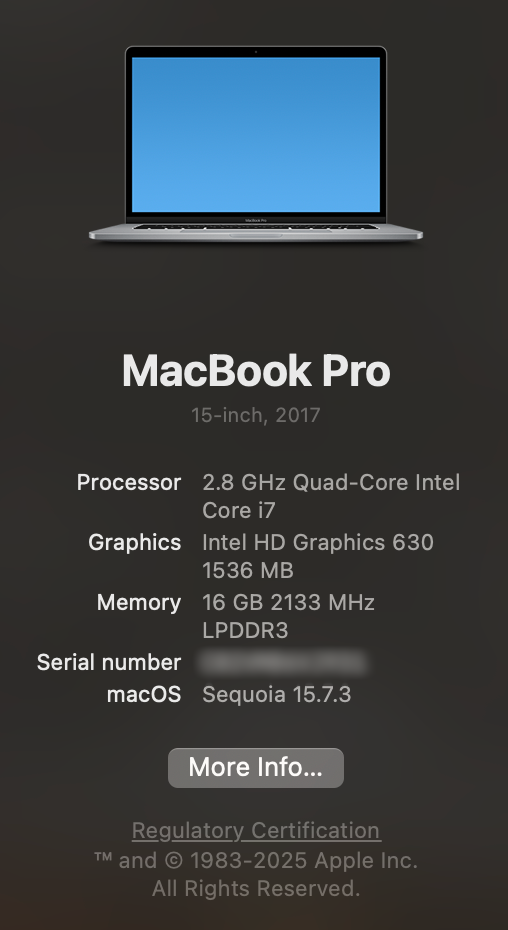
I have a couple of old MacBook Pro’s from late 2016 (MacBook Pro 13,3) and another one from mid 2017 (MacBook Pro 14,3). These laptops have been sitting on my shelves since the pandemic. In 2023 I upgraded them with Sonoma using OpenCore Legacy Patcher (OCLP). I documented the process here. Both of these laptops are Intel based Mac and they have the infamous Touch Bar. These computers are no longer compatible with the most recent macOS. At the time of writing, the latest version is macOS 26 code named Tahoe.
My original idea in 2026 is to install a suitable Linux distribution. I prepared three distributions:
- Linux Mint
- Lubuntu
- Zorin OS
After several hours of trying these distributions, they all had issues with the Wifi. The driver simply fail to install. A laptop without Wifi is somewhat pointless because you cannot move around with them. Another show stopper with Linux is that we cannot get the Touch Bar to work. At first I didn’t think it was a big deal until I realized that the all important ESC key and all the function keys are on the Touch Bar. Therefore, it is somewhat impractical.
At this point, I was going to chuck them into the e-waste bin, and then I remember that a couple of years ago I played with OCLP. This is a little app that allows you to download a version of macOS installer and create a bootable USB drive with a boot-loader that will make certain firmware adjustments so that an incompatible macOS can be installed on old unsupported hardware, such as these laptops. This time instead of Sonoma, we’ll install Sequoia.
Unfortunately, OCLP still does not support macOS Tahoe, but Sequoia is not too bad. On another Intel based Mac mini, I prepared a bootable USB drive with Sequoia using OCLP, and then I went into the program’s settings to select my targeted Mac model. This allows the program to build and install OpenCore on to the same USB boot drive’s EFI partition.
Once the USB drive is prepared with BOTH the installer and the OpenCore EFI partition with the selected targeted hardware (in our case either MacBook Pro 13,3 or 14,3), we can then use the bootable USB drive on our old MacBooks.
The installation process begins with powering on the old MacBook with the USB drive plugged in while holding down the Option key. This will show the current bootable OS that we will be replacing, the EFI partition containing OpenCore, and the new installer that we prepared with macOS Sequoia. We want to select the EFI OpenCore first, and then select the Sequoia Installer. This way the installer will be running with the firmware fixes.
When the installer is running, there will be several reboots. Once the install is completed, there is one last step that we must do. We have to perform a Post Install Root Patch. This effectively replace the OS drivers with old drivers that are compatible with your old hardware.
With the OCLP, I was able to get both laptops to run Sequoia giving an 8 and 9 years old laptop new life. However there are downsides:
- We cannot perform automated updates from Apple, so I turned off automatic updates and downloads of new OS updates;
- When OCLP has a new app version, we will need to create a new OpenCore partition installed on the laptop bootable drive’s EFI partition, and we will also have to reapply the root patches;
- We can only update new OS when they are supported by OCLP, so for Tahoe we will have to await a new version;
I think the disadvantages are negligible when compared to just throwing away the hardware.
I still have a 10+ years old MacBook Air which I look forward to trying with Sequoia.